Shapefile to GeoJSON Converter: Complete Guide for Web Mapping
You downloaded geographic data from your city’s open data portal. It’s a .zip file containing roads.shp, roads.dbf, roads.shx, and three other files you don’t recognize. You want to display it on your website with Leaflet.js.
But Leaflet doesn’t read shapefiles.
Or maybe you’re building a real estate platform. Your county provides property boundary data—10,000 parcels in ESRI shapefile format. You need to overlay them on an interactive map where users can click properties to see details.
Your JavaScript mapping library expects GeoJSON, not binary shapefile components.
Or perhaps you’re a data journalist preparing an interactive story about election results by district. You have the geographic boundaries from the election commission as shapefiles. Your D3.js visualization needs GeoJSON.
Converting shapefiles manually in GIS software for every dataset is killing your productivity.
Here’s the reality: Shapefiles are the industry standard for desktop GIS, but they’re completely incompatible with modern web mapping. Created by ESRI in the early 1990s, shapefiles require 3-7 separate files, use binary encoding, and need specialized parsers. Meanwhile, every web mapping library—Leaflet, Mapbox GL JS, OpenLayers, Google Maps API—expects GeoJSON: a single, readable JSON file.
The gap between these formats frustrates developers daily. You can’t just rename .shp to .geojson. You need proper conversion that transforms coordinates, preserves attributes, handles projections, and validates geometry.
This guide shows you exactly how to bridge that gap. You’ll learn why shapefiles and GeoJSON exist, how to convert between them using online tools or command-line utilities, integrate converted data into Leaflet and Mapbox, troubleshoot common conversion errors, and optimize GeoJSON files for production web maps.
By the end, you’ll convert any shapefile to web-ready GeoJSON in under 30 seconds—and understand what’s happening under the hood.
Quick Answer: Converting Shapefiles to GeoJSON
Don’t have time for 7,000 words? Here’s what you need to know:
- What you need: Minimum 3 files (.shp, .shx, .dbf) plus optional .prj for accurate coordinates
- Best online tool: Use our Shapefile Converter for instant conversion up to 50MB
- Command-line option:
ogr2ogr -f GeoJSON output.geojson input.shp(requires GDAL) - Desktop software: QGIS (free) exports shapefiles to GeoJSON in 3 clicks
- Key difference: Shapefiles = binary, multi-file, desktop GIS | GeoJSON = JSON, single file, web mapping
- Common mistake: Missing .prj file causes coordinates to appear in wrong location
- File size: GeoJSON is 40-60% larger than shapefile, but compresses well with gzip
- Web integration:
L.geoJSON(data).addTo(map)works immediately in Leaflet
Ready to master shapefile conversion? Let’s dive in.
What Are Shapefiles and Why Can’t Browsers Read Them?
Understanding ESRI Shapefiles
A shapefile is a geospatial vector data format developed by ESRI (Environmental Systems Research Institute) in the early 1990s. Despite being 30+ years old, it remains the most widely-used format for exchanging GIS data.
Here’s the catch: “Shapefile” is misleading. It’s not one file—it’s a collection of multiple files that work together.
The Multi-File Nightmare
When you download a shapefile, you actually get at least 3 files (often 5-7):
Required Files (Can’t work without all 3):
-
.shp- Shape Format File- Contains the actual geometry (points, lines, polygons)
- Stores coordinate pairs for every vertex
- Binary format, not human-readable
-
.shx- Shape Index File- Positional index linking geometry to attributes
- Enables fast spatial queries
- Critical for performance
-
.dbf- dBase Attribute Table- Stores feature attributes in columnar format
- Example: street names, population counts, land use codes
- Based on 1980s dBase database format
- Major limitation: Column names limited to 10 characters
Optional But Important:
4. .prj - Projection File
- Defines coordinate reference system (CRS)
- Critical: Missing this file causes conversion errors
- Example: WGS84, NAD83 State Plane, UTM zones
-
.cpg- Code Page File- Specifies character encoding (UTF-8, Windows-1252, etc.)
- Prevents garbled text in international datasets
-
.sbn/.sbx- Spatial Index (created by ArcGIS)

Why Browsers Can’t Use Shapefiles
Binary Format Problem:
Shapefiles use binary encoding designed for desktop software, not browsers. JavaScript can’t natively parse .shp files without specialized libraries.
Multi-File Dependency:
Web applications work with single-file formats (JSON, XML, CSV). Managing 3-7 interdependent files breaks web workflows.
No Native Support:
Unlike JSON (which every browser parses natively), shapefiles require external parsers that add ~100KB to your bundle.
Desktop-First Design:
Shapefiles were designed for desktop GIS workflows: ArcGIS, QGIS, MapInfo. The web didn’t exist when ESRI created the format in 1991.
Real-World Impact
Example scenario: You download a 10MB shapefile of city boundaries from data.gov. Here’s what you face:
city-boundaries.zip contains:
  ├── boundaries.shp    (6.2 MB)
  ├── boundaries.shx    (0.8 MB)
  ├── boundaries.dbf    (2.4 MB)
  ├── boundaries.prj    (171 bytes)
  └── boundaries.cpg    (5 bytes)
Your Leaflet.js code:
// This doesn't work!
fetch('boundaries.shp')
  .then(response => response.json())  // ❌ Fails - binary format
  .then(data => L.geoJSON(data).addTo(map));
You need conversion first.
What is GeoJSON and Why Do Web Maps Love It?
Understanding GeoJSON
GeoJSON is an open standard format (RFC 7946) for encoding geographic data structures using JSON (JavaScript Object Notation). It was specifically designed for web applications.
Published: October 2016 by the Internet Engineering Task Force (IETF)
File extension: .geojson or .json
MIME type: application/geo+json
Why GeoJSON Wins for Web Mapping
1. Native Browser Support
// Works immediately - no special libraries
fetch('data.geojson')
  .then(response => response.json())  // ✅ Native JSON parsing
  .then(data => L.geoJSON(data).addTo(map));
2. Single File Format
city-boundaries.geojson (4.1 MB)
One file contains everything: geometry + attributes + metadata.
3. Human-Readable
Open in any text editor to inspect, debug, or modify:
{
  "type": "FeatureCollection",
  "features": [
    {
      "type": "Feature",
      "geometry": {
        "type": "Polygon",
        "coordinates": [[[-122.4194, 37.7749], ...]]
      },
      "properties": {
        "name": "San Francisco",
        "population": 873965,
        "area_sqkm": 600.6
      }
    }
  ]
}
4. Universal Library Support
- Leaflet.js:
L.geoJSON(data) - Mapbox GL JS:
map.addSource('data', {type: 'geojson', data: data}) - OpenLayers:
new VectorSource({format: new GeoJSON()}) - D3.js:
d3.geoPath().projection(projection)(geojson) - Google Maps:
map.data.addGeoJson(data)
5. API-Friendly
Perfect for RESTful APIs:
GET /api/properties?city=SF
Response: application/geo+json
GeoJSON Structure Breakdown
Basic FeatureCollection:
{
  "type": "FeatureCollection",
  "features": [
    {
      "type": "Feature",
      "id": 1,
      "geometry": {
        "type": "Point",
        "coordinates": [-122.4194, 37.7749]
      },
      "properties": {
        "city": "San Francisco",
        "state": "California",
        "population": 873965
      }
    }
  ]
}
Supported Geometry Types:
Point- Single coordinateLineString- Array of coordinates (roads, routes)Polygon- Array of linear rings (boundaries, buildings)MultiPoint- Multiple unconnected pointsMultiLineString- Multiple separate linesMultiPolygon- Multiple separate polygons (island chains)GeometryCollection- Mixed geometry types
Coordinate Order (CRITICAL):
[longitude, latitude, altitude]
Not [latitude, longitude] like many assume. This trips up developers constantly.
The Mandatory Coordinate System
RFC 7946 specifies that GeoJSON must use WGS84 (EPSG:4326):
- Longitude: -180° to +180°
- Latitude: -90° to +90°
- Datum: WGS84 (same as GPS)
This is non-negotiable. If your shapefile uses a different coordinate system (State Plane, UTM, Web Mercator), conversion must transform it to WGS84.
Shapefile vs GeoJSON: Technical Comparison
| Feature | Shapefile | GeoJSON | Winner |
|---|---|---|---|
| File Structure | Multi-file (3-7 files) | Single JSON file | GeoJSON |
| Browser Compatibility | None (binary) | Native JSON.parse() | GeoJSON |
| Human Readable | No (hex viewers only) | Yes (text editor) | GeoJSON |
| File Size (raw) | Compact binary | 40-60% larger | Shapefile |
| File Size (gzipped) | ~Same | ~Same | Tie |
| Desktop GIS Support | Universal | QGIS, ArcGIS Pro 2.2+ | Shapefile |
| Web Mapping | Requires conversion | Direct use | GeoJSON |
| Column Name Length | 10 characters max | Unlimited | GeoJSON |
| Nested Properties | No (flat table) | Yes (full JSON) | GeoJSON |
| Coordinate Systems | Any CRS | WGS84 only | Shapefile |
| Version Control (Git) | Binary diffs useless | Line-by-line diffs | GeoJSON |
| Data Types | Limited (String, Number, Date) | Full JSON types | GeoJSON |
| Max File Size | 2GB per component | No practical limit | GeoJSON |
When to Use Each Format
Use Shapefiles for:
- Desktop GIS workflows (ArcGIS, QGIS, AutoCAD)
- Data archival (smaller file size)
- Sharing with government agencies (required format)
- Complex coordinate systems (State Plane, UTM)
- High-precision surveying data
Use GeoJSON for:
- Web mapping (Leaflet, Mapbox, Google Maps)
- API responses
- Mobile applications (React Native)
- Data visualization (D3.js, Observable)
- Version control systems (Git)
- NoSQL databases (MongoDB GeoJSON support)
Best Practice: Keep shapefiles as your “source of truth” for data storage and analysis. Convert to GeoJSON only when deploying to web applications. This hybrid approach gives you the best of both worlds.
How to Convert Shapefile to GeoJSON (4 Methods)
Method 1: Online Converter (Easiest)
Best for: Quick conversions, non-technical users, files under 50MB
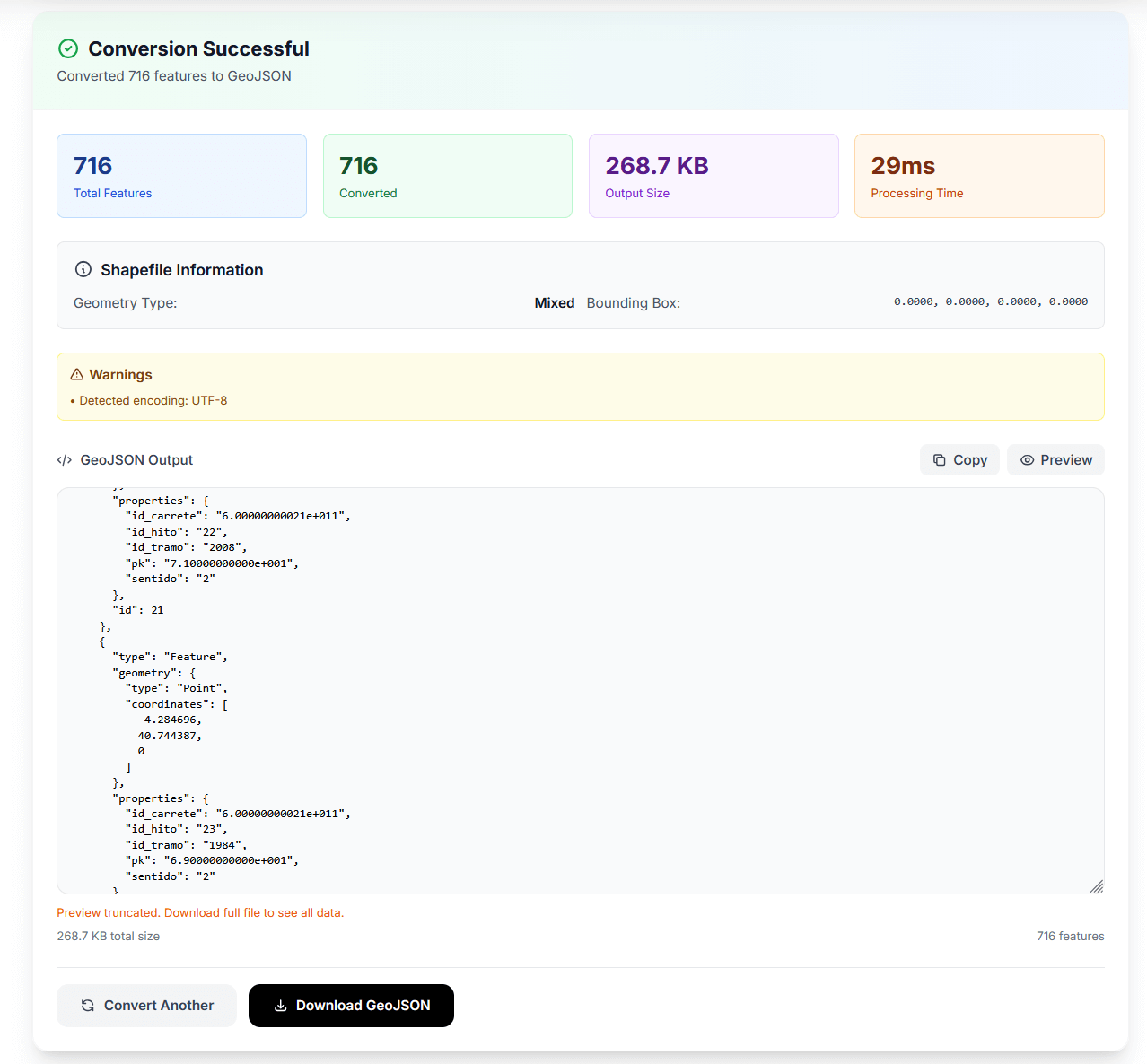
Our Shapefile to GeoJSON Converter handles conversion in your browser:
Step-by-step:
-
Upload Required Files
- Drag and drop or click to select:
filename.shp(geometry)filename.shx(index)filename.dbf(attributes)
- Highly recommended: Include
filename.prj(projection)
- Drag and drop or click to select:
-
Configure Options
- Coordinate Precision: 6 decimals (default) = ~10cm accuracy
- Pretty Print: Enable for readable JSON, disable for production
- Validate Geometry: Check for topology errors before deployment
- Include CRS Info: Add coordinate system metadata
-
Convert
- Processing time: 1-3 seconds for most files
- Preview map shows your data overlaid on basemap
- Verify features render in correct location
-
Download
- Get RFC 7946-compliant GeoJSON
- Use immediately in web mapping libraries
Advantages:
- No software installation
- Works on any device with browser
- Live map preview with Leaflet
- Automatic projection transformation
- Geometry validation included
Limitations:
- File size limit (50MB)
- Requires internet connection
- Data temporarily uploaded to server (deleted after conversion)
Method 2: QGIS (Best for Desktop Users)
Best for: Large files, batch processing, advanced editing
QGIS is free, open-source desktop GIS software available for Windows, Mac, and Linux.
Installation:
# Ubuntu/Debian
sudo apt install qgis

# macOS (Homebrew)
brew install qgis

# Windows
# Download installer from https://qgis.org/download/
Conversion Steps:
-
Open Shapefile
- Layer → Add Layer → Add Vector Layer
- Browse to .shp file (other components auto-detected)
- Data loads on map canvas
-
Verify Data
- Check features render correctly
- Open attribute table to verify properties
- Confirm coordinate system in layer properties
-
Export to GeoJSON
- Right-click layer → Export → Save Features As
- Format: GeoJSON
- CRS: EPSG:4326 - WGS 84
- Coordinate precision: 6 decimals
- Click OK
Advanced Options in Export Dialog:
Layer Options:
- COORDINATE_PRECISION: 6
- RFC7946: YES (strict compliance)
- WRITE_BBOX: YES (include bounding box)

Select Fields to Export:
☑ name
☑ population
☑ area
☐ internal_id (uncheck to exclude)
Batch Conversion Script (Processing Toolbox):
# QGIS Python Console
from processing import run

run("native:reprojectlayer", {
    'INPUT': '/path/to/shapefile.shp',
    'TARGET_CRS': 'EPSG:4326',
    'OUTPUT': '/path/to/output.geojson'
})
Method 3: Command-Line (ogr2ogr)
Best for: Automation, scripting, very large files, production pipelines
ogr2ogr is part of GDAL (Geospatial Data Abstraction Library), the industry-standard tool for geospatial data conversion.
Installation:
# Ubuntu/Debian
sudo apt-get install gdal-bin

# macOS (Homebrew)
brew install gdal

# Windows
# Download from https://gdal.org/download.html
# or use OSGeo4W installer
Verify Installation:
ogr2ogr --version
# Output: GDAL 3.8.3, released 2024/01/04
Basic Conversion:
ogr2ogr -f GeoJSON output.geojson input.shp
Production-Ready Conversion:
ogr2ogr \
  -f GeoJSON \
  -t_srs EPSG:4326 \
  -lco COORDINATE_PRECISION=6 \
  -lco RFC7946=YES \
  -lco WRITE_BBOX=YES \
  output.geojson \
  input.shp
Options Explained:
-f GeoJSON- Output format-t_srs EPSG:4326- Transform to WGS84-lco COORDINATE_PRECISION=6- 6 decimal places (~10cm accuracy)-lco RFC7946=YES- Strict RFC 7946 compliance-lco WRITE_BBOX=YES- Include bounding box in output
Advanced Use Cases:
1. Filter by Attributes:
# Export only cities with population > 100,000
ogr2ogr \
  -f GeoJSON \
  -where "population > 100000" \
  large_cities.geojson \
  cities.shp
2. Select Specific Columns:
# Include only name and population (reduce file size)
ogr2ogr \
  -f GeoJSON \
  -select "name,population,area" \
  filtered.geojson \
  input.shp
3. Simplify Geometry:
# Reduce vertex count for faster rendering
# Tolerance 0.0001 degrees (~11 meters)
ogr2ogr \
  -f GeoJSON \
  -simplify 0.0001 \
  simplified.geojson \
  detailed.shp
4. Reproject from Specific CRS:
# If .prj missing, manually specify source CRS
ogr2ogr \
  -s_srs EPSG:2227 \  # NAD83 California State Plane Zone 3
  -t_srs EPSG:4326 \  # WGS84
  output.geojson \
  input.shp
5. Batch Convert Directory:
#!/bin/bash
# Convert all shapefiles in current directory
for file in *.shp; do
  output="${file%.shp}.geojson"
  ogr2ogr -f GeoJSON -t_srs EPSG:4326 "$output" "$file"
  echo "Converted $file → $output"
done
6. Check Shapefile Info Before Converting:
# View metadata, CRS, feature count, extent
ogrinfo -al -so input.shp

# Output includes:
# - Geometry type
# - Feature count
# - CRS (EPSG code)
# - Bounding box
# - Attribute field names and types
Method 4: Programming Libraries
Best for: Data pipelines, automated workflows, custom processing
Python (GeoPandas)
import geopandas as gpd

# Read shapefile
gdf = gpd.read_file('input.shp')

# Convert to WGS84 if needed
if gdf.crs != 'EPSG:4326':
    gdf = gdf.to_crs('EPSG:4326')

# Export to GeoJSON
gdf.to_file('output.geojson', driver='GeoJSON')
With coordinate precision control:
import json
import geopandas as gpd

gdf = gpd.read_file('input.shp')
gdf = gdf.to_crs('EPSG:4326')

# Convert to GeoJSON string
geojson_str = gdf.to_json()
geojson = json.loads(geojson_str)

# Round coordinates to 6 decimals
def round_coords(coords, precision=6):
    if isinstance(coords[0], list):
        return [round_coords(c, precision) for c in coords]
    return [round(c, precision) for c in coords]

for feature in geojson['features']:
    geom = feature['geometry']
    if geom and 'coordinates' in geom:
        geom['coordinates'] = round_coords(geom['coordinates'], 6)

# Save with indentation for readability
with open('output.geojson', 'w') as f:
    json.dump(geojson, f, indent=2)
Filter and convert:
import geopandas as gpd

# Read and filter
gdf = gpd.read_file('parcels.shp')
valuable = gdf[gdf['assessed_value'] > 1000000]

# Export filtered data
valuable.to_file('high_value_parcels.geojson', driver='GeoJSON')
Node.js
const shapefile = require('shapefile');
const fs = require('fs');

async function convertShapefile(shpPath, geojsonPath) {
  const features = [];

  // Open shapefile
  const source = await shapefile.open(shpPath);

  // Read all features
  let result = await source.read();
  while (!result.done) {
    features.push(result.value);
    result = await source.read();
  }

  // Create FeatureCollection
  const geojson = {
    type: 'FeatureCollection',
    features: features
  };

  // Write to file
  fs.writeFileSync(geojsonPath, JSON.stringify(geojson, null, 2));
  console.log(`Converted ${features.length} features to ${geojsonPath}`);
}

// Usage
convertShapefile('input.shp', 'output.geojson');
Understanding Coordinate Systems and Projection
Why Coordinate Systems Matter
The Problem: Earth is a 3D sphere (technically an oblate spheroid). Maps are 2D. Flattening a sphere onto a plane requires mathematical projection, which introduces distortion.
Different projections optimize for different properties:
- Preserve area (equal-area projections)
- Preserve shape (conformal projections)
- Preserve distance (equidistant projections)
- Preserve direction (azimuthal projections)
Real-world impact: If your shapefile uses California State Plane coordinates and you convert without specifying projection, features will render ~200 meters off their true location.
Common Coordinate Reference Systems
WGS84 (EPSG:4326) - Web Standard
- Full name: World Geodetic System 1984
- Type: Geographic (latitude/longitude)
- Units: Degrees
- Range: Longitude -180° to 180°, Latitude -90° to 90°
- Used by: GPS, Google Maps, all web mapping
- Required for: GeoJSON (RFC 7946 mandate)
Example coordinates: [-122.4194, 37.7749]
                     [longitude, latitude]
Web Mercator (EPSG:3857)
- Full name: WGS 84 / Pseudo-Mercator
- Type: Projected (Cartesian)
- Units: Meters
- Used by: Google Maps tiles, OpenStreetMap, Bing
- Distortion: Extreme at high latitudes (Greenland appears huge)
- Note: Cannot be used in GeoJSON (must convert to EPSG:4326)
NAD83 State Plane (US Regional)
- Type: Projected (multiple zones)
- Units: Feet or meters (varies by zone)
- Accuracy: Optimized within state boundaries
- Example: California Zone 3 (EPSG:2227)
- Common in: US government datasets, county GIS data
UTM (Universal Transverse Mercator)
- Type: Projected (60 zones)
- Units: Meters
- Coverage: 6° wide zones covering globe
- Accuracy: High within zone (<0.04% distortion)
- Example: UTM Zone 10N (EPSG:32610) covers California
Detecting Coordinate System
Method 1: Check .prj File
# Open .prj file in text editor
cat boundaries.prj

# Output (WGS84 example):
GEOGCS["GCS_WGS_1984",
  DATUM["D_WGS_1984",
    SPHEROID["WGS_1984",6378137,298.257223563]],
  PRIMEM["Greenwich",0],
  UNIT["Degree",0.017453292519943295]]
Method 2: Use ogrinfo
ogrinfo -al -so input.shp | grep -A 5 "Layer SRS WKT"

# Output shows full WKT string and EPSG code
Method 3: QGIS
- Load shapefile
- Layer Properties → Information → CRS
- Shows readable name and EPSG code
Projection Transformation During Conversion
Automatic Transformation (with .prj):
Our converter (and ogr2ogr) automatically:
- Reads source CRS from .prj file
- Applies mathematical transformation to WGS84
- Outputs GeoJSON in EPSG:4326
Manual Transformation (missing .prj):
# Specify source CRS manually
ogr2ogr \
  -s_srs EPSG:2227 \  # Source: California State Plane Zone 3
  -t_srs EPSG:4326 \  # Target: WGS84
  output.geojson \
  input.shp
Verify Transformation:
After conversion, load GeoJSON in geojson.io and verify features render over correct geographic location.
Integrating GeoJSON with Web Mapping Libraries
Leaflet.js (Most Popular)
Leaflet is the leading open-source JavaScript library for mobile-friendly interactive maps. It’s lightweight (39KB gzipped) and easy to learn.
Basic Integration:
<!DOCTYPE html>
<html>
<head>
  <link rel="stylesheet" href="https://unpkg.com/leaflet@1.9.4/dist/leaflet.css" />
  <script src="https://unpkg.com/leaflet@1.9.4/dist/leaflet.js"></script>
  <style>
    #map { height: 600px; }
  </style>
</head>
<body>
  <div id="map"></div>

  <script>
    // Initialize map
    const map = L.map('map').setView([37.7749, -122.4194], 10);

    // Add basemap tiles
    L.tileLayer('https://{s}.tile.openstreetmap.org/{z}/{x}/{y}.png', {
      attribution: '© OpenStreetMap contributors',
      maxZoom: 19
    }).addTo(map);

    // Load and display GeoJSON
    fetch('neighborhoods.geojson')
      .then(response => response.json())
      .then(data => {
        L.geoJSON(data).addTo(map);
      });
  </script>
</body>
</html>
With Custom Styling:
fetch('neighborhoods.geojson')
  .then(response => response.json())
  .then(data => {
    L.geoJSON(data, {
      style: function(feature) {
        return {
          fillColor: getColor(feature.properties.density),
          weight: 2,
          opacity: 1,
          color: 'white',
          fillOpacity: 0.7
        };
      },
      onEachFeature: function(feature, layer) {
        // Add popup with properties
        const props = feature.properties;
        layer.bindPopup(`
          <h3>${props.name}</h3>
          <p>Population: ${props.population.toLocaleString()}</p>
          <p>Density: ${props.density} per sq km</p>
        `);
      }
    }).addTo(map);
  });

// Color function for choropleth map
function getColor(density) {
  return density > 1000 ? '#800026' :
         density > 500  ? '#BD0026' :
         density > 200  ? '#E31A1C' :
         density > 100  ? '#FC4E2A' :
         density > 50   ? '#FD8D3C' :
         density > 20   ? '#FEB24C' :
         density > 10   ? '#FED976' :
                          '#FFEDA0';
}
Point Markers with Custom Icons:
L.geoJSON(data, {
  pointToLayer: function(feature, latlng) {
    // Custom marker icon
    const icon = L.icon({
      iconUrl: 'marker-icon.png',
      iconSize: [25, 41],
      iconAnchor: [12, 41],
      popupAnchor: [1, -34]
    });
    return L.marker(latlng, {icon: icon});
  },
  onEachFeature: function(feature, layer) {
    layer.bindPopup(`<b>${feature.properties.name}</b>`);
  }
}).addTo(map);
Mapbox GL JS
Mapbox GL JS is a powerful WebGL-powered library for vector maps with smooth zoom and rotation.
mapboxgl.accessToken = 'YOUR_MAPBOX_TOKEN';

const map = new mapboxgl.Map({
  container: 'map',
  style: 'mapbox://styles/mapbox/light-v10',
  center: [-122.4194, 37.7749],
  zoom: 10
});

map.on('load', () => {
  // Add GeoJSON source
  map.addSource('neighborhoods', {
    type: 'geojson',
    data: 'neighborhoods.geojson'
  });

  // Add fill layer
  map.addLayer({
    id: 'neighborhoods-fill',
    type: 'fill',
    source: 'neighborhoods',
    paint: {
      'fill-color': [
        'interpolate',
        ['linear'],
        ['get', 'density'],
        0, '#FED976',
        500, '#E31A1C',
        1000, '#800026'
      ],
      'fill-opacity': 0.7
    }
  });

  // Add outline layer
  map.addLayer({
    id: 'neighborhoods-outline',
    type: 'line',
    source: 'neighborhoods',
    paint: {
      'line-color': '#000',
      'line-width': 1
    }
  });

  // Add click popup
  map.on('click', 'neighborhoods-fill', (e) => {
    const props = e.features[0].properties;
    new mapboxgl.Popup()
      .setLngLat(e.lngLat)
      .setHTML(`
        <h3>${props.name}</h3>
        <p>Population: ${props.population}</p>
      `)
      .addTo(map);
  });

  // Change cursor on hover
  map.on('mouseenter', 'neighborhoods-fill', () => {
    map.getCanvas().style.cursor = 'pointer';
  });
  map.on('mouseleave', 'neighborhoods-fill', () => {
    map.getCanvas().style.cursor = '';
  });
});
React with react-leaflet
import { MapContainer, TileLayer, GeoJSON } from 'react-leaflet';
import { useState, useEffect } from 'react';
function NeighborhoodMap() {
const [geojsonData, setGeojsonData] = useState(null);
useEffect(() => {
fetch('/data/neighborhoods.geojson')
.then(res => res.json())
.then(data => setGeojsonData(data))
.catch(err => console.error('Failed to load GeoJSON:', err));
}, []);
const onEachFeature = (feature, layer) => {
const { name, population, area } = feature.properties;
layer.bindPopup(`
<div class="popup">
<h3>${name}</h3>
<p><strong>Population:</strong> ${population.toLocaleString()}</p>
<p><strong>Area:</strong> ${area} km²</p>
</div>
`);
};
const style = {
fillColor: '#3388ff',
weight: 2,
opacity: 1,
color: 'white',
fillOpacity: 0.5
};
return (
<MapContainer
center={[37.7749, -122.4194]}
zoom={10}
style={{ height: '600px', width: '100%' }}
>
<TileLayer
url="https://{s}.tile.openstreetmap.org/{z}/{x}/{y}.png"
attribution='© OpenStreetMap contributors'
/>
{geojsonData && (
<GeoJSON
data={geojsonData}
style={style}
onEachFeature={onEachFeature}
/>
)}
</MapContainer>
);
}
export default NeighborhoodMap;
Common Conversion Errors and Solutions
Error 1: “Coordinates in Wrong Location”
Symptom: Features render in ocean, wrong continent, or offset by hundreds of meters
Cause: Missing .prj file or incorrect CRS transformation
How it happens:
- Shapefile uses NAD83 State Plane (feet)
- No .prj file included
- Converter assumes WGS84 (degrees)
- Coordinates interpreted incorrectly
Solution:
Step 1: Identify Source CRS
# If you have .prj file
cat boundaries.prj

# If missing, check data source documentation
# Or load in QGIS and inspect CRS
Step 2: Convert with Correct CRS
# Specify source CRS manually
ogr2ogr \
  -s_srs EPSG:2227 \  # California State Plane Zone 3 (example)
  -t_srs EPSG:4326 \
  corrected.geojson \
  input.shp
Step 3: Verify Results
Load corrected.geojson in geojson.io and confirm features align with basemap.
Prevention: Always include .prj file when distributing shapefiles.
Error 2: “Geometry Validation Failed”
Symptom: Converter reports self-intersecting polygons, invalid rings, or topology errors
Cause: Source shapefile has geometry problems (common in manually-digitized data or old CAD conversions)
Error Examples:
- Self-intersecting polygon (boundary crosses itself)
- Unclosed rings (polygon doesn’t close)
- Duplicate vertices
- Wrong coordinate order (clockwise vs counter-clockwise)
Solution:
Option 1: Fix in QGIS
1. Open shapefile in QGIS
2. Vector → Geometry Tools → Fix Geometries
3. Save to new shapefile
4. Convert fixed version to GeoJSON
Option 2: Use PostGIS ST_MakeValid
-- Import to PostGIS, fix, export
CREATE TABLE fixed_geom AS
SELECT id, ST_MakeValid(geom) AS geom, name, population
FROM original_table;
Option 3: Disable Validation (Use with Caution)
# Convert anyway, ignoring errors
ogr2ogr -f GeoJSON -skipfailures output.geojson input.shp
Warning: Invalid geometries may crash web mapping libraries. Use validation to catch problems early.
Error 3: “Garbled Text / Special Characters Display as ??????”
Symptom: City names with accents, Chinese characters, or special symbols appear corrupted
Cause: Character encoding mismatch
How it happens:
- Shapefile created with Windows-1252 encoding (Western European)
- DBF contains “São Paulo” or “北京”
- Converter assumes UTF-8
- Text displays as “S??o Paulo” or “??”
Solution:
Option 1: Create .cpg File
# Create code page file specifying encoding
echo "UTF-8" > boundaries.cpg

# Place in same directory as shapefile
# Converter will use this encoding
Option 2: Specify Encoding in ogr2ogr
ogr2ogr \
  -f GeoJSON \
  --config SHAPE_ENCODING Windows-1252 \
  output.geojson \
  input.shp
Option 3: Try Common Encodings
# UTF-8 (most common)
--config SHAPE_ENCODING UTF-8

# Western European
--config SHAPE_ENCODING ISO-8859-1

# Windows Latin
--config SHAPE_ENCODING Windows-1252

# Japanese
--config SHAPE_ENCODING Shift_JIS
Error 4: “File Too Large for Browser / Out of Memory”
Symptom: Browser freezes, page crashes, or “Out of memory” errors when loading GeoJSON
Cause: GeoJSON file > 5-10MB loads entire dataset into browser memory
Example:
- Detailed county boundaries: 15MB GeoJSON
- 100,000+ property parcels: 50MB GeoJSON
- High-resolution coastlines: 80MB GeoJSON
Solutions:
1. Simplify Geometry (Recommended)
# Reduce vertex count using Douglas-Peucker algorithm
# Tolerance 0.0001 degrees ≈ 11 meters
ogr2ogr \
  -f GeoJSON \
  -simplify 0.0001 \
  simplified.geojson \
  detailed.shp
Result: 50-80% file size reduction with minimal visual quality loss at web map zoom levels.
2. Filter Features
# Export only needed features
ogr2ogr \
  -f GeoJSON \
  -where "population > 50000" \
  filtered.geojson \
  all_cities.shp
3. Remove Unnecessary Attributes
# Keep only displayed columns
ogr2ogr \
  -f GeoJSON \
  -select "name,population,area" \
  lean.geojson \
  full_data.shp
4. Use Vector Tiles (Advanced)
For datasets > 10MB, convert to Mapbox Vector Tiles:
# Install Tippecanoe
brew install tippecanoe  # macOS
# or build from source for Linux

# Convert GeoJSON to vector tiles
tippecanoe \
  -o boundaries.mbtiles \
  -z14 \  # max zoom level
  --drop-densest-as-needed \
  boundaries.geojson
Host tiles on Mapbox, MapTiler, or self-host with TileServer GL.
5. Server-Side Rendering
For extremely large datasets, render on server and send tiles to client instead of raw GeoJSON.
Error 5: “Empty Properties / No Attributes”
Symptom: GeoJSON has correct geometry but all properties objects are empty {}
Cause: Corrupted or missing .dbf file
Diagnosis:
# Check if .dbf exists and has content
ls -lh boundaries.dbf
# Should be > 0 bytes

# Inspect DBF structure
ogrinfo -al -so boundaries.shp | grep Field
# Should list field names and types
Solutions:
1. Verify DBF Integrity
- Open shapefile in QGIS
- View attribute table
- If empty, source data has no attributes
2. Re-export from Source
- Go back to original data source
- Download fresh copy
- Verify attributes present before conversion
3. Join Attributes from CSV
If you have attributes separately:
import geopandas as gpd
import pandas as pd

# Load GeoJSON (geometry only)
gdf = gpd.read_file('geometry.geojson')

# Load attributes from CSV
attrs = pd.read_csv('attributes.csv')

# Join on ID field
gdf_with_attrs = gdf.merge(attrs, on='id')

# Export combined data
gdf_with_attrs.to_file('complete.geojson', driver='GeoJSON')
Performance Optimization for Production
File Size Reduction Techniques
1. Coordinate Precision
Default GeoJSON often has 15+ decimal places. Web maps don’t need that precision.
# 6 decimals = ~11cm accuracy (perfect for web maps)
ogr2ogr -lco COORDINATE_PRECISION=6 optimized.geojson input.shp
Precision Guidelines:
- 2 decimals (~1.1 km) - Country/continent scale
- 4 decimals (~11 m) - City-level maps
- 6 decimals (~11 cm) - Building footprints ⭐ Recommended
- 8 decimals (~1.1 mm) - Engineering/surveying (overkill for web)
File size impact: Each decimal place adds ~15% to file size.
2. Remove Pretty Printing
Human-readable JSON uses lots of whitespace:
{
  "type": "FeatureCollection",
  "features": [
    {
      "type": "Feature"
    }
  ]
}
Minified (production):
{"type":"FeatureCollection","features":[{"type":"Feature"}]}
Savings: 15-25% smaller
# Minify with jq
jq -c . input.geojson > minified.geojson
3. Gzip Compression
Serve GeoJSON with gzip compression (70-80% reduction):
Nginx configuration:
location ~* \.geojson$ {
    gzip on;
    gzip_types application/json application/geo+json;
    gzip_comp_level 9;
}
Apache (.htaccess):
<FilesMatch "\.(geojson|json)$">
  SetOutputFilter DEFLATE
</FilesMatch>
Result: 10MB GeoJSON → 2-3MB gzipped
4. Attribute Filtering
Remove columns not displayed to users:
# Keep only name, population (remove internal IDs, codes, etc.)
ogr2ogr \
  -f GeoJSON \
  -select "name,population" \
  lean.geojson \
  full.shp
Typical savings: 40-70% for datasets with many attributes
Caching Strategies
Browser Caching Headers:
Cache-Control: public, max-age=31536000, immutable
Versioned Filenames:
boundaries-2025-01-15.geojson
boundaries-2025-02-10.geojson
Prevents stale cache when data updates.
CDN Delivery:
- CloudFront, Cloudflare, Fastly
- Global edge locations for low latency
- Automatic gzip compression
- DDoS protection
Service Worker Caching (Progressive Web Apps):
// Cache GeoJSON for offline use
self.addEventListener('fetch', (event) => {
  if (event.request.url.endsWith('.geojson')) {
    event.respondWith(
      caches.match(event.request).then((response) => {
        return response || fetch(event.request).then((fetchResponse) => {
          return caches.open('geojson-v1').then((cache) => {
            cache.put(event.request, fetchResponse.clone());
            return fetchResponse;
          });
        });
      })
    );
  }
});
Progressive Loading
For large datasets, load simplified version first, then detailed features on demand:
// Load low-detail version immediately
fetch('boundaries-simplified.geojson')
  .then(res => res.json())
  .then(data => {
    const layer = L.geoJSON(data).addTo(map);

    // Load high-detail version in background
    fetch('boundaries-full.geojson')
      .then(res => res.json())
      .then(detailedData => {
        // Replace when ready
        map.removeLayer(layer);
        L.geoJSON(detailedData).addTo(map);
      });
  });
Best Practices Checklist
Before Conversion
- ✅ Verify all required files present (.shp, .shx, .dbf)
- ✅ Include .prj file (CRITICAL for accurate coordinates)
- ✅ Check .cpg file for character encoding
- ✅ Back up original shapefiles
- ✅ Open in QGIS to verify data integrity
- ✅ Document data source and acquisition date
During Conversion
- ✅ Transform to WGS84 (EPSG:4326)
- ✅ Set coordinate precision to 6 decimals
- ✅ Enable RFC 7946 strict compliance
- ✅ Enable geometry validation
- ✅ Filter unnecessary attributes
- ✅ Simplify geometry if file > 5MB
After Conversion
- ✅ Validate GeoJSON at geojson.io
- ✅ Test in target mapping library (Leaflet/Mapbox)
- ✅ Verify coordinates render in correct location
- ✅ Check attribute encoding (special characters)
- ✅ Measure file size (compress if > 2MB)
- ✅ Test on mobile devices
Deployment
- ✅ Enable gzip compression on server
- ✅ Set cache headers (1 year for static data)
- ✅ Use CDN for global delivery
- ✅ Monitor loading performance (Lighthouse)
- ✅ Keep original shapefiles as backup
- ✅ Document projection transformation applied
Real-World Use Cases
1. Real Estate Property Mapping
Scenario: Display property boundaries from county tax assessor
Data: Parcel shapefiles (10,000+ polygons)
Workflow:
- Download parcel shapefile from county GIS portal
- Convert to GeoJSON (include only: address, assessed_value, zoning)
- Simplify geometry (0.0001 tolerance)
- Integrate with Leaflet on property search page
- Add click handler to show property details popup
Code:
fetch('parcels.geojson')
  .then(res => res.json())
  .then(data => {
    L.geoJSON(data, {
      style: { weight: 1, color: '#666', fillOpacity: 0.3 },
      onEachFeature: (feature, layer) => {
        const p = feature.properties;
        layer.bindPopup(`
          <h4>${p.address}</h4>
          <p>Assessed Value: $${p.assessed_value.toLocaleString()}</p>
          <p>Zoning: ${p.zoning}</p>
          <a href="/property/${p.parcel_id}">View Details</a>
        `);
      }
    }).addTo(map);
  });
SEO Benefit: Rich snippets showing property locations improve local search rankings.
2. Environmental Conservation Dashboard
Scenario: Visualize protected wetlands from EPA survey data
Data: Wetland boundary shapefiles from field GPS surveys
Workflow:
- Receive shapefiles from environmental consultants
- Convert to GeoJSON preserving all survey attributes
- Create React dashboard with Mapbox GL JS
- Add filtering by wetland type, protection status
- Enable stakeholder collaboration via web interface
Result: Reduces reporting costs by 70% compared to generating PDFs from desktop GIS.
3. Election Results Choropleth Map
Scenario: Interactive visualization of voting results by precinct
Data Sources:
- Election commission shapefiles (precinct boundaries)
- CSV with vote counts
Workflow:
- Convert precinct boundaries to GeoJSON
- Join election results using Python/GeoPandas
- Create D3.js choropleth map
- Color precincts by vote percentage
- Add tooltips with detailed results
Traffic: Data journalism drives high engagement and social sharing.
4. Store Locator with Delivery Zones
Scenario: E-commerce site showing delivery coverage
Data: Service area shapefiles (drive-time polygons)
Implementation:
// Show delivery zones on checkout page
const deliveryLayer = L.geoJSON(deliveryZones, {
  style: (feature) => ({
    fillColor: feature.properties.same_day ? '#00ff00' : '#ffff00',
    weight: 2,
    opacity: 1,
    color: 'white',
    fillOpacity: 0.5
  }),
  onEachFeature: (feature, layer) => {
    layer.bindPopup(`
      <strong>${feature.properties.delivery_speed}</strong>
      <p>Order by ${feature.properties.cutoff_time} for delivery</p>
    `);
  }
}).addTo(map);

// Check if address is in delivery zone
function checkDelivery(lat, lng) {
  const point = turf.point([lng, lat]);
  const zones = deliveryZones.features;

  for (let zone of zones) {
    if (turf.booleanPointInPolygon(point, zone)) {
      return zone.properties.delivery_speed;
    }
  }
  return 'not available';
}
Tools and Resources
Internal Links
- JSON Formatter & Validator - Validate GeoJSON structure and format
- Coordinate Converter - Convert between coordinate systems
- Distance Calculator - Calculate geographic distances between points
- Area Calculator - Compute area of polygons from GeoJSON
- Bearing Calculator - Calculate bearing and azimuth for navigation
- Base64 Encoder - Encode GeoJSON for API transmission
- All Developer Tools - Complete developer toolkit
External Resources (High Authority)
Standards & Specifications:
- GeoJSON Specification (RFC 7946) - Official IETF standard
- Shapefile Technical Specification - ESRI whitepaper
Coordinate Systems:
- EPSG.io - Coordinate system database and transformation
- Spatial Reference - CRS definitions in all formats
Software & Tools:
- QGIS - Free open-source GIS software
- GDAL/OGR - Geospatial data conversion library
- Mapshaper - Online GeoJSON editor and simplifier
- geojson.io - Online GeoJSON viewer and validator
Mapping Libraries:
- Leaflet.js Documentation - JavaScript mapping library
- Mapbox GL JS Guide - WebGL-powered maps
- OpenLayers - Powerful mapping framework
- D3.js Geographies - Data visualization with maps
Data Sources:
- Data.gov - US government open data (250,000+ shapefiles)
- Natural Earth - Public domain map datasets
- OpenStreetMap - Collaborative mapping project
Community & Support:
- GIS Stack Exchange - Q&A for GIS professionals
- r/gis - GIS community discussions
- Maptime - Learning community for mapmaking
Conclusion: From Desktop GIS to Web Maps in Seconds
Shapefiles dominated geospatial data for three decades because they work brilliantly in desktop GIS software. But the web demands different formats—single files, readable JSON, native browser support.
Converting shapefiles to GeoJSON bridges this gap. You get the best of both worlds: store and analyze data in shapefiles, deploy to web applications as GeoJSON.
Key takeaways:
- Always include .prj file - Without it, coordinates will be wrong
- Use 6 decimal places - Perfect balance of precision and file size
- Validate geometry - Catch errors before deployment
- Optimize for production - Simplify, filter attributes, enable gzip
- Test in target library - Verify rendering before launch
Next steps:
- Try our Shapefile to GeoJSON Converter for instant conversion
- Download sample shapefiles from Data.gov to practice
- Build your first web map with Leaflet.js
- Learn coordinate systems to avoid projection errors
The gap between desktop GIS and web mapping just got a lot smaller. Now go build something amazing.
Related Articles:
- JSON Formatter Complete Guide - Master JSON in JavaScript
- Coordinate Converter Guide - Understanding GPS coordinates
- Base64 Encoding Explained - Encode geospatial data for APIs
Last Updated: November 24, 2025
Reading Time: 18 minutes
Difficulty: Intermediate