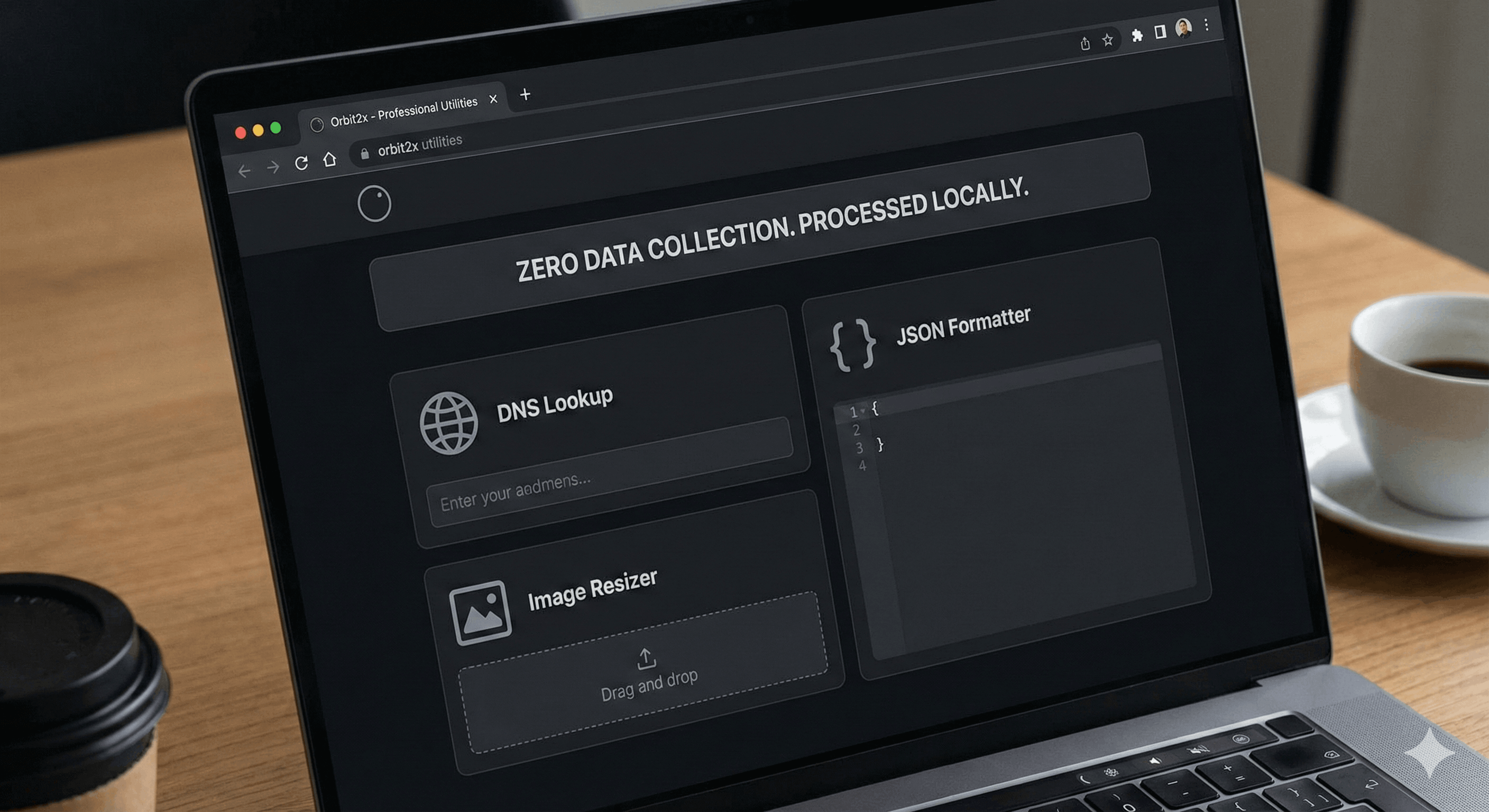
DNS Lookup Complete Guide: Check, Validate & Troubleshoot DNS Records (2025)
Your website was working perfectly yesterday. Today, nobody can access it. Your email shows “DNS_PROBE_FINISHED_NXDOMAIN.” Users see “This site can’t be reached.”
Your DNS just broke.
Or maybe you migrated your site to a new host three days ago. Half your users see the new site. The other half still see the old one. Your support inbox is exploding with confused messages.
DNS propagation is haunting you.
Or perhaps you’re setting up email for your domain. You added MX records exactly as instructed. But emails bounce back with “Mail server not found.”
Your DNS configuration is wrong, and you don’t know why.
DNS problems are infuriating because they’re invisible. You can’t “see” DNS working or breaking. Most developers treat it like magic—change some records, wait mysteriously for “propagation,” and hope it works. When it doesn’t, they’re lost.
But here’s the truth: DNS isn’t magic. It’s a systematic, hierarchical lookup process. Once you understand how DNS queries flow through the internet, how different record types work, and which tools to use for diagnosis, DNS becomes predictable and fixable.
This guide teaches you exactly that. You’ll learn how DNS resolution actually works under the hood, how to check DNS records properly across multiple servers, understand why propagation takes time (and how to speed it up), troubleshoot every common DNS problem with step-by-step solutions, and optimize your DNS configuration for performance and security.
By the end, you’ll diagnose DNS issues faster than most developers can Google the error message.
Quick Answer: DNS Lookup Essentials
Don’t have time for 9,000 words? Here’s what you need to know:
- What DNS does: Translates human-readable domain names (example.com) into machine-readable IP addresses (93.184.216.34)
- How long it takes: Milliseconds when cached, 24-48 hours for global propagation after changes
- Most common problem: DNS changes not reflecting due to caching (solution: lower TTL before changes, wait for propagation)
- Best lookup tool: Use
digon Linux/Mac ornslookupon Windows for command-line; use our DNS Lookup tool for visual results - Key DNS record types: A (IPv4), AAAA (IPv6), MX (email), CNAME (alias), TXT (verification/email auth)
- Quick fix: Clear your DNS cache with
ipconfig /flushdns(Windows) orsudo dscacheutil -flushcache(Mac) - Propagation checker: Test DNS globally with our DNS Lookup tool or WhatsMyDNS.net
Still here? Let’s master DNS lookup.
What is DNS Lookup?
DNS Lookup is the process of querying the Domain Name System to translate a human-readable domain name into an IP address that computers use to communicate.
Think of DNS as the internet’s phone book. When you type “google.com” into your browser, your computer doesn’t understand that. It needs an IP address like 142.250.185.46. DNS lookup is the process of finding that number.
Why DNS Lookup Matters
Without DNS lookup, you’d have to:
- Remember
142.250.185.46instead of google.com - Update every link when a server’s IP changes
- Manually track IP addresses for thousands of websites
With DNS lookup:
- Use memorable domain names
- Server IPs can change without affecting users
- Load balancing and CDN routing work automatically
Real-World DNS Lookup Example
When you type orbit2x.com in your browser:
1. Browser checks: "Do I know orbit2x.com's IP?" (cache check)
2. If no: "Does my OS know?" (OS cache)
3. If no: "Does my DNS resolver know?" (router/ISP cache)
4. If no: Query DNS hierarchy:
   → Root server: "Ask .com servers"
   → .com server: "Ask orbit2x.com's nameservers"
   → Authoritative server: "Here's the IP: 1.2.3.4"
5. Browser connects to 1.2.3.4
6. Result cached for future visits
Total time: 20-120 milliseconds (uncached) or 0-5 milliseconds (cached)
DNS Lookup Format Examples
A Record (most common):
orbit2x.com → 93.184.216.34
AAAA Record (IPv6):
orbit2x.com → 2606:2800:220:1:248:1893:25c8:1946
CNAME Record (alias):
www.orbit2x.com → orbit2x.com
MX Record (email):
orbit2x.com → mail.orbit2x.com (priority: 10)
Use our DNS Lookup tool to check any domain’s DNS records instantly with a visual, easy-to-understand interface.
How DNS Resolution Works
Understanding the DNS resolution process is critical for troubleshooting. Let’s trace exactly what happens when you look up a domain.
The Complete DNS Query Journey
Example: Looking up www.orbit2x.com
Step 1: Browser Cache Check
Browser: "Have I resolved www.orbit2x.com recently?"
Cache: "Yes! IP is 93.184.216.34 (expires in 45 minutes)"
Browser: "Great, connecting now." → Done in ~1ms
If cached: Query ends here (fastest scenario)
Step 2: Operating System Cache
Browser: "No cache. Hey OS, do YOU know www.orbit2x.com?"
OS: "Let me check my hosts file and DNS cache..."
OS: "Yes! IP is 93.184.216.34"
Browser: "Thanks!" → Done in ~5ms
If not in browser cache but in OS cache: Query ends here
Step 3: Recursive DNS Resolver
OS: "Not in my cache. Asking my configured DNS server..."
(Usually your ISP's DNS or public DNS like 8.8.8.8)

Recursive Resolver: "I'll find this for you. Let me start at the top..."
This is where the DNS hierarchy query begins.
Step 4: Root Nameserver Query
Recursive Resolver → Root Server (one of 13 global clusters)
Question: "Where do I find .com domains?"
Root Server: "Ask the .com TLD servers at these IPs:
  - 192.5.6.30
  - 192.26.92.30
  - 192.31.80.30
  (and 10 more)"
13 root server clusters (labeled a.root-servers.net through m.root-servers.net) handle all DNS queries globally using Anycast routing.
Step 5: TLD (Top-Level Domain) Server Query
Recursive Resolver → .com TLD Server
Question: "Where do I find orbit2x.com?"
TLD Server: "Ask orbit2x.com's authoritative nameservers:
  - ns1.orbit2x.com
  - ns2.orbit2x.com"
TLD servers manage all domains within their extension (.com, .org, .net, etc.)
Step 6: Authoritative Nameserver Query
Recursive Resolver → ns1.orbit2x.com (authoritative)
Question: "What's the IP for www.orbit2x.com?"
Authoritative Server: "It's 93.184.216.34 (TTL: 3600 seconds)"
Authoritative nameservers have the final, official answer for a domain’s DNS records.
Step 7: Return and Cache
Recursive Resolver → OS: "Found it! 93.184.216.34"
OS → Browser: "Here's the IP!"
Browser → Web Server (93.184.216.34): "GET /index.html"

All parties cache this result for 3600 seconds (1 hour)
DNS Query Time Breakdown
Typical uncached lookup:
Browser cache:          0ms (miss)
OS cache:               1ms (miss)
Recursive resolver:     5ms (miss)
Root server query:      20ms
TLD server query:       15ms
Authoritative query:    10ms
Return to browser:      5ms
─────────────────────────
Total:                  56ms
Cached lookup:
Browser cache:          1ms (hit!)
─────────────────────────
Total:                  1ms
This is why caching is crucial for performance.
DNS Hierarchy Visual
                    Root (.)
                       |
        ┌──────────────┼──────────────┐
        |              |              |
      .com           .org           .net
        |              |              |
   orbit2x.com    wikipedia.org   example.net
        |
   ┌────┴────┐
  www      mail
Caching Mechanisms
Multiple caching layers prevent overload:
- Browser cache: Typically 1-30 minutes
- Operating system cache: Varies by OS
- Recursive resolver cache: Based on TTL (Time To Live)
- CDN/Edge cache: For geo-distributed content
TTL (Time To Live) controls how long records are cached:
- Low TTL (300s): Changes propagate faster, but more queries
- High TTL (86400s): Fewer queries, but changes take longer
Check your domain’s current DNS records and TTL values with our DNS Lookup tool.
DNS Record Types Explained
Different DNS record types serve different purposes. Here’s what each one does and when to use it.
A Records (Address Records)
Purpose: Maps a domain name to an IPv4 address
Format:
example.com. 3600 IN A 93.184.216.34
Real-world example:
$ dig orbit2x.com A

;; ANSWER SECTION:
orbit2x.com.  3600  IN  A  93.184.216.34
When to use:
- Point your domain to a web server
- Direct traffic to a specific IPv4 address
- Most common DNS record type
Common uses:
orbit2x.com → 93.184.216.34 (main site)
api.orbit2x.com → 93.184.216.35 (API server)
blog.orbit2x.com → 93.184.216.36 (blog server)
AAAA Records (IPv6 Address Records)
Purpose: Maps a domain name to an IPv6 address
Format:
example.com. 3600 IN AAAA 2606:2800:220:1:248:1893:25c8:1946
Why it matters:
- IPv4 addresses are running out
- IPv6 provides 340 undecillion addresses
- Many networks are IPv6-only
- Better performance on IPv6 networks
Example:
$ dig orbit2x.com AAAA

;; ANSWER SECTION:
orbit2x.com.  3600  IN  AAAA  2606:2800:220:1:248:1893:25c8:1946
Best practice: Always configure both A and AAAA records for maximum compatibility.
MX Records (Mail Exchange)
Purpose: Directs email to the correct mail servers
Format:
example.com.  3600  IN  MX  10 mail.example.com.
example.com.  3600  IN  MX  20 mail2.example.com.
Priority values explained:
- Lower number = higher priority
- Primary mail server: priority 10
- Backup mail server: priority 20
- Mail is delivered to lowest priority first
Real example (Google Workspace):
$ dig orbit2x.com MX

;; ANSWER SECTION:
orbit2x.com.  3600  IN  MX  1  aspmx.l.google.com.
orbit2x.com.  3600  IN  MX  5  alt1.aspmx.l.google.com.
orbit2x.com.  3600  IN  MX  5  alt2.aspmx.l.google.com.
orbit2x.com.  3600  IN  MX  10 alt3.aspmx.l.google.com.
orbit2x.com.  3600  IN  MX  10 alt4.aspmx.l.google.com.
Multiple MX records provide redundancy: If the primary mail server (priority 1) is down, email routes to the next available server (priority 5).
Common email provider MX records:
Gmail/Google Workspace:
MX  1   aspmx.l.google.com.
MX  5   alt1.aspmx.l.google.com.
MX  5   alt2.aspmx.l.google.com.
Microsoft 365:
MX 0 example-com.mail.protection.outlook.com.
Zoho Mail:
MX  10  mx.zoho.com.
MX  20  mx2.zoho.com.
CNAME Records (Canonical Name)
Purpose: Creates an alias from one domain to another
Format:
www.example.com. 3600 IN CNAME example.com.
Real-world example:
$ dig www.orbit2x.com CNAME

;; ANSWER SECTION:
www.orbit2x.com.  3600  IN  CNAME  orbit2x.com.
orbit2x.com.      3600  IN  A      93.184.216.34
Common uses:
- Point www subdomain to root domain
- CDN configuration (point to CDN hostname)
- Service subdomains (point to external service)
CNAME limitations:
❌ WRONG: You CANNOT use CNAME at root domain
orbit2x.com  CNAME  example.com  (Not allowed!)

✅ CORRECT: Use CNAME for subdomains only
www.orbit2x.com  CNAME  orbit2x.com  (Allowed)
Why? RFC 1912 prohibits CNAME at zone apex (root domain) because it conflicts with SOA and NS records.
CNAME chain example:
blog.orbit2x.com → orbit2x.github.io → 185.199.108.153
(CNAME)            (CNAME)             (A record)
Best practice: Avoid CNAME chains longer than 2-3 hops for performance.
Common CNAME use cases:
CDN setup:
cdn.orbit2x.com CNAME orbit2x.cloudfront.net
GitHub Pages:
blog.orbit2x.com CNAME orbit2x.github.io
Heroku app:
app.orbit2x.com CNAME orbit2x.herokuapp.com
TXT Records (Text Records)
Purpose: Stores arbitrary text data for verification and authentication
Format:
example.com. 3600 IN TXT "v=spf1 include:_spf.google.com ~all"
Common uses:
SPF (Sender Policy Framework) - Email Authentication
orbit2x.com TXT "v=spf1 include:_spf.google.com ~all"
- Specifies which mail servers can send email for your domain
- Prevents email spoofing
~allmeans soft fail (suspicious),-allmeans hard fail (reject)
SPF record breakdown:
v=spf1                    → SPF version 1
include:_spf.google.com   → Allow Google's servers
include:sendgrid.net      → Allow SendGrid
ip4:192.0.2.1             → Allow this specific IP
~all                      → Soft fail everything else
DKIM (DomainKeys Identified Mail) - Email Signing
default._domainkey.orbit2x.com TXT "v=DKIM1; k=rsa; p=MIGfMA0GCS..."
- Cryptographically signs emails
- Proves emails weren’t tampered with
- Improves email deliverability
DMARC (Domain-based Message Authentication) - Email Policy
_dmarc.orbit2x.com TXT "v=DMARC1; p=quarantine; rua=mailto:dmarc@orbit2x.com"
- Tells receiving servers what to do with failed SPF/DKIM
- Options:
none(monitor),quarantine(spam),reject(block) - Sends reports on email authentication
Domain Verification (Google, Microsoft, etc.)
orbit2x.com  TXT  "google-site-verification=abc123xyz"
orbit2x.com  TXT  "MS=ms12345678"
- Proves you own the domain
- Required for Google Search Console, Microsoft 365, etc.
Check your domain’s TXT records (including SPF, DKIM, DMARC) with our DNS Lookup tool.
NS Records (Name Server)
Purpose: Specifies which nameservers are authoritative for the domain
Format:
example.com.  86400  IN  NS  ns1.example.com.
example.com.  86400  IN  NS  ns2.example.com.
Example:
$ dig orbit2x.com NS

;; ANSWER SECTION:
orbit2x.com.  86400  IN  NS  ns1.cloudflare.com.
orbit2x.com.  86400  IN  NS  ns2.cloudflare.com.
Why multiple NS records?
- Redundancy: If one nameserver fails, others respond
- Load distribution: Queries spread across servers
- Industry standard: Minimum 2, recommended 3-4
Nameserver delegation:
Registrar: "orbit2x.com uses ns1.cloudflare.com"
           ↓
Cloudflare NS: "orbit2x.com has these records: A, MX, TXT..."
SOA Records (Start of Authority)
Purpose: Contains administrative information about the DNS zone
Format:
example.com.  3600  IN  SOA  ns1.example.com. admin.example.com. (
                              2025111601 ; Serial (YYYYMMDDnn)
                              7200       ; Refresh (2 hours)
                              3600       ; Retry (1 hour)
                              1209600    ; Expire (14 days)
                              3600       ; Minimum TTL (1 hour)
                              )
Fields explained:
- Primary nameserver: ns1.example.com
- Admin email: admin.example.com (actually admin@example.com)
- Serial: Version number, incremented with each change
- Refresh: How often secondary servers check for updates
- Retry: How long to wait before retrying failed refresh
- Expire: When secondary servers stop serving data
- Minimum TTL: Default cache time for negative responses
You rarely need to modify SOA records manually (managed DNS providers handle this automatically).
PTR Records (Reverse DNS)
Purpose: Maps an IP address back to a domain name (opposite of A record)
Format:
34.216.184.93.in-addr.arpa. 3600 IN PTR orbit2x.com.
When it matters:
- Email servers: Many mail servers reject emails without valid PTR records
- Logging and security: Identify connections by hostname
- Troubleshooting: Verify server identity
Example:
$ dig -x 93.184.216.34

;; ANSWER SECTION:
34.216.184.93.in-addr.arpa.  3600  IN  PTR  example.com.
Note: PTR records are configured by your hosting provider or ISP, not in your domain’s DNS settings.
CAA Records (Certificate Authority Authorization)
Purpose: Specifies which certificate authorities can issue SSL certificates for your domain
Format:
example.com.  3600  IN  CAA  0 issue "letsencrypt.org"
example.com.  3600  IN  CAA  0 issue "digicert.com"
example.com.  3600  IN  CAA  0 iodef "mailto:security@example.com"
Why use CAA records?
- Security: Prevents unauthorized SSL certificate issuance
- Prevent phishing: Attackers can’t get valid certificates for your domain
- Compliance: Required by some industries
Example:
orbit2x.com  CAA  0 issue "letsencrypt.org"
orbit2x.com  CAA  0 issuewild ";"  (prevents wildcard certificates)
SRV Records (Service Records)
Purpose: Defines the location of specific services
Format:
_service._proto.name. TTL IN SRV priority weight port target.
Example (XMPP/Jabber server):
_xmpp._tcp.example.com. 3600 IN SRV 10 5 5222 xmpp.example.com.
Common uses:
- VoIP/SIP servers
- XMPP/Jabber messaging
- Minecraft servers
- Microsoft Active Directory
Most developers won’t need SRV records unless configuring specific services.
How to Perform DNS Lookup
Multiple methods exist for checking DNS records. Choose based on your needs.
Method 1: Command-Line Tools
Command-line tools are fastest and most powerful for developers.
Using nslookup (Windows/Mac/Linux)
Check A record:
nslookup orbit2x.com
Output:
Server:  8.8.8.8
Address: 8.8.8.8#53

Non-authoritative answer:
Name:    orbit2x.com
Address: 93.184.216.34
Check MX records:
nslookup -type=MX orbit2x.com
Query specific DNS server:
nslookup orbit2x.com 8.8.8.8
Check multiple record types:
nslookup -type=ANY orbit2x.com
nslookup is simple but limited. For detailed queries, use dig.
Using dig (Linux/Mac - Recommended)
dig (Domain Information Groper) provides detailed, parseable output.
Check A record:
dig orbit2x.com
Output:
; <<>> DiG 9.18.18 <<>> orbit2x.com
;; Got answer:
;; ->>HEADER<<- opcode: QUERY, status: NOERROR, id: 12345
;; flags: qr rd ra; QUERY: 1, ANSWER: 1, AUTHORITY: 0, ADDITIONAL: 1

;; ANSWER SECTION:
orbit2x.com.  3600  IN  A  93.184.216.34

;; Query time: 23 msec
;; SERVER: 8.8.8.8#53(8.8.8.8)
;; WHEN: Sat Nov 16 10:30:00 UTC 2025
;; MSG SIZE  rcvd: 56
Check MX records:
dig MX orbit2x.com
Check all records:
dig ANY orbit2x.com
Query specific DNS server (Cloudflare):
dig @1.1.1.1 orbit2x.com
Trace DNS query path:
dig +trace orbit2x.com
Output shows each step:
.                       518400  IN  NS  a.root-servers.net.
com.                    172800  IN  NS  a.gtld-servers.net.
orbit2x.com.            86400   IN  NS  ns1.cloudflare.com.
orbit2x.com.            3600    IN  A   93.184.216.34
Short output (just the answer):
dig +short orbit2x.com
93.184.216.34
Check DNS response time:
dig orbit2x.com | grep "Query time"
;; Query time: 23 msec
Reverse DNS lookup:
dig -x 93.184.216.34
dig is the gold standard for DNS troubleshooting.
Using host Command (Linux/Mac)
Simpler alternative to dig:
host orbit2x.com
orbit2x.com has address 93.184.216.34
orbit2x.com mail is handled by 10 mail.orbit2x.com.
Check specific record:
host -t MX orbit2x.com
orbit2x.com mail is handled by 10 mail.orbit2x.com.
Check all records:
host -a orbit2x.com
Method 2: Online DNS Lookup Tools
Web-based tools offer visual interfaces without requiring command-line knowledge.
Using Our DNS Lookup Tool
Orbit2x DNS Lookup provides:
- Visual, easy-to-read results
- Multiple record types simultaneously
- Global DNS propagation checking
- No installation required
- Share-able results
Advantages over command-line:
- User-friendly interface
- Multiple DNS servers checked simultaneously
- Visual propagation maps
- History tracking
- Mobile-friendly
When to use web tools:
- Quick one-time lookups
- Sharing results with non-technical team members
- Checking propagation across multiple locations
- No terminal access available
Other Popular DNS Tools
MXToolbox:
- Comprehensive DNS and email tools
- Blacklist checking
- SMTP diagnostics
- Link: mxtoolbox.com
WhatsMyDNS.net:
- Global DNS propagation checker
- Tests from 20+ locations worldwide
- Shows which servers have updated records
DNSChecker.org:
- Multiple record types
- Global propagation
- Reverse IP lookup
Google Public DNS:
- Check via Google’s DNS (8.8.8.8)
- Link: dns.google
Cloudflare DNS:
- Check via 1.1.1.1
- JSON API available
- Link: cloudflare-dns.com
Method 3: Programming/API Methods
Integrate DNS lookups into applications and scripts.
JavaScript/Node.js
Using built-in dns module:
const dns = require('dns');

// Resolve A record
dns.resolve4('orbit2x.com', (err, addresses) => {
  if (err) throw err;
  console.log(`IP: ${addresses[0]}`);
  // Output: IP: 93.184.216.34
});

// Resolve MX records
dns.resolveMx('orbit2x.com', (err, addresses) => {
  if (err) throw err;
  console.log(addresses);
  // Output: [ { exchange: 'mail.orbit2x.com', priority: 10 } ]
});

// Reverse lookup
dns.reverse('93.184.216.34', (err, hostnames) => {
  if (err) throw err;
  console.log(`Hostname: ${hostnames[0]}`);
});
Using promises (async/await):
const dns = require('dns').promises;

async function lookupDNS(domain) {
  try {
    const addresses = await dns.resolve4(domain);
    console.log(`${domain} → ${addresses[0]}`);
  } catch (error) {
    console.error(`DNS lookup failed: ${error.message}`);
  }
}

lookupDNS('orbit2x.com');
Python
Using socket module (simple):
import socket

# Get IP address
ip = socket.gethostbyname('orbit2x.com')
print(f"IP: {ip}")
# Output: IP: 93.184.216.34

# Reverse lookup
hostname = socket.gethostbyaddr('93.184.216.34')
print(f"Hostname: {hostname[0]}")
Using dnspython library (advanced):
import dns.resolver

# Install: pip install dnspython

# Get A record
result = dns.resolver.resolve('orbit2x.com', 'A')
for ipval in result:
    print(f'IP: {ipval.to_text()}')

# Get MX records
mx_records = dns.resolver.resolve('orbit2x.com', 'MX')
for mx in mx_records:
    print(f'Mail server: {mx.exchange} (priority: {mx.preference})')

# Get TXT records
txt_records = dns.resolver.resolve('orbit2x.com', 'TXT')
for txt in txt_records:
    print(f'TXT: {txt.to_text()}')
PHP
Using dns_get_record():
<?php
// Get all DNS records
$records = dns_get_record('orbit2x.com', DNS_ALL);
print_r($records);

// Get only A records
$a_records = dns_get_record('orbit2x.com', DNS_A);
foreach ($a_records as $record) {
    echo "IP: " . $record['ip'] . "\n";
}

// Get MX records
$mx_records = dns_get_record('orbit2x.com', DNS_MX);
foreach ($mx_records as $mx) {
    echo "Mail: " . $mx['target'] . " (priority: " . $mx['pri'] . ")\n";
}

// Check if domain exists
if (checkdnsrr('orbit2x.com', 'A')) {
    echo "Domain exists!\n";
}
?>
Go
Using net package:
package main

import (
    "fmt"
    "net"
)

func main() {
    // Lookup IP address
    ips, err := net.LookupIP("orbit2x.com")
    if err != nil {
        panic(err)
    }
    for _, ip := range ips {
        fmt.Printf("IP: %s\n", ip.String())
    }

    // Lookup MX records
    mxRecords, err := net.LookupMX("orbit2x.com")
    if err != nil {
        panic(err)
    }
    for _, mx := range mxRecords {
        fmt.Printf("Mail: %s (priority: %d)\n", mx.Host, mx.Pref)
    }

    // Lookup nameservers
    ns, err := net.LookupNS("orbit2x.com")
    if err != nil {
        panic(err)
    }
    for _, n := range ns {
        fmt.Printf("Nameserver: %s\n", n.Host)
    }
}
Using cURL with DNS APIs
Google DNS API:
curl "https://dns.google/resolve?name=orbit2x.com&type=A"
Response:
{
  "Status": 0,
  "TC": false,
  "RD": true,
  "RA": true,
  "AD": false,
  "CD": false,
  "Question": [
    {
      "name": "orbit2x.com.",
      "type": 1
    }
  ],
  "Answer": [
    {
      "name": "orbit2x.com.",
      "type": 1,
      "TTL": 3600,
      "data": "93.184.216.34"
    }
  ]
}
Cloudflare DNS API:
curl -H "accept: application/dns-json" \
  "https://cloudflare-dns.com/dns-query?name=orbit2x.com&type=A"
Perfect for integrations, monitoring, and automation.
Checking DNS Across Multiple Servers
Verifying DNS across different servers reveals propagation status and inconsistencies.
Why Check Multiple DNS Servers?
Reasons to test multiple servers:
- Verify propagation completion - Has your DNS change reached all servers?
- Identify DNS inconsistencies - Are different servers returning different results?
- Detect caching issues - Which servers still have old data?
- Test global availability - Does your domain resolve everywhere?
- Troubleshoot regional problems - Why can users in Asia access your site but not Europe?
Real-world scenario:
You: "I changed my DNS 6 hours ago, why isn't it working?"

Check Google DNS (8.8.8.8):
orbit2x.com → 93.184.216.34 (OLD IP) ❌

Check Cloudflare DNS (1.1.1.1):
orbit2x.com → 93.184.216.35 (NEW IP) ✅

Answer: Propagation in progress. Google DNS still cached.
Major Public DNS Providers
Google Public DNS
Primary: 8.8.8.8
Secondary: 8.8.4.4
Features:
- Fast global performance
- Privacy-respecting
- No DNS hijacking
- Supports DNSSEC
Query Google DNS:
dig @8.8.8.8 orbit2x.com
nslookup orbit2x.com 8.8.8.8
Cloudflare DNS
Primary: 1.1.1.1
Secondary: 1.0.0.1
Features:
- Fastest DNS resolver (14.8ms average)
- Privacy-first (doesn’t log IP addresses)
- DNSSEC validation
- Malware blocking (optional: 1.1.1.2)
Query Cloudflare DNS:
dig @1.1.1.1 orbit2x.com
nslookup orbit2x.com 1.1.1.1
Privacy comparison:
Google DNS: Stores limited data for 24-48 hours
Cloudflare DNS: Doesn't store IP addresses in logs
Quad9: Blocks malicious domains automatically
Quad9
Primary: 9.9.9.9
Secondary: 149.112.112.112
Features:
- Security-focused
- Blocks known malicious domains
- Privacy-respecting
- Free for everyone
Query Quad9:
dig @9.9.9.9 orbit2x.com
OpenDNS (Cisco)
Primary: 208.67.222.222
Secondary: 208.67.220.220
Features:
- Customizable content filtering
- Parental controls
- Phishing protection
- Domain stats and reporting
Query OpenDNS:
dig @208.67.222.222 orbit2x.com
Authoritative vs Recursive Nameservers
Understanding the difference is critical for troubleshooting.
Authoritative Nameservers
What they do: Hold the official, original DNS records for a domain
Example:
$ dig orbit2x.com NS
orbit2x.com.  86400  IN  NS  ns1.cloudflare.com.
orbit2x.com.  86400  IN  NS  ns2.cloudflare.com.
Query authoritative server directly:
dig @ns1.cloudflare.com orbit2x.com
When to query authoritative servers:
- Verify what records you actually configured
- Bypass all caching
- Confirm changes took effect on your nameservers
- Troubleshoot propagation delays
Authoritative response indicators:
;; flags: qr aa rd ra
           ↑
           aa = Authoritative Answer
Recursive Nameservers
What they do: Query other servers on your behalf and cache results
Examples:
- Your ISP’s DNS servers
- Google Public DNS (8.8.8.8)
- Cloudflare DNS (1.1.1.1)
When to query recursive servers:
- Test what end-users see
- Check if changes propagated to major resolvers
- Verify caching behavior
Recursive response indicators:
;; flags: qr rd ra
           ↑
           NO "aa" flag = Non-authoritative (cached)
Comparison:
| Aspect | Authoritative | Recursive |
|---|---|---|
| Source | Your DNS provider | ISP or public resolver |
| Caches results | No | Yes |
| Always current | Yes | Only after TTL expires |
| Use for verification | Yes | After propagation |
| User experience | Not what users see | What users actually see |
Troubleshooting workflow:
1. Query authoritative server:
   dig @ns1.cloudflare.com orbit2x.com
   → Verify your records are correct

2. Query recursive servers:
   dig @8.8.8.8 orbit2x.com
   dig @1.1.1.1 orbit2x.com
   → Check if changes propagated

3. If different:
   → Wait for TTL expiration
   → Clear caches if urgent
Geographic DNS Testing
DNS can return different results based on location (geo-routing, CDN, load balancing).
Why test globally?
- CDNs serve different IPs by region
- Verify failover configurations
- Troubleshoot “works for me but not for users”
- Test Anycast DNS performance
Tools for global testing:
WhatsMyDNS.net:
- Tests from 20+ locations
- Real-time propagation status
- Free, no registration
DNS Checker:
- Global DNS propagation
- IPv4 and IPv6 testing
- Historical tracking
Our DNS Lookup tool:
- Check DNS from multiple servers
- See propagation status visually
- Test any record type
- Link: orbit2x.com/lookup
Example global test:
Location          | IP Returned      | Status
------------------|------------------|--------
New York, USA     | 93.184.216.34    | ✅ New IP
London, UK        | 93.184.216.34    | ✅ New IP
Tokyo, Japan      | 93.184.216.33    | ❌ Old IP (cached)
Sydney, Australia | 93.184.216.34    | ✅ New IP
Mumbai, India     | 93.184.216.33    | ❌ Old IP (cached)
Diagnosis: Asia-Pacific DNS servers still caching old record. Wait 1-2 more hours for full propagation.
Understanding DNS Propagation
DNS propagation is the time it takes for DNS changes to spread across the internet. Understanding it prevents frustration.
What is DNS Propagation?
Definition: The period between updating DNS records and when those changes are visible globally.
Why propagation happens:
- You update DNS records on authoritative nameservers
- Recursive resolvers worldwide still have old records cached
- Each resolver checks for updates based on TTL
- As TTL expires, resolvers fetch new records
- Eventually all caches refresh → propagation complete
It’s not actually “propagation” - nothing is actively “spreading.” It’s thousands of independent caches expiring at different times based on TTL.
DNS Propagation Timeline
Typical timeline:
Immediate (0 seconds):
└─ Changes live on authoritative nameservers
   ✅ dig @ns1.cloudflare.com shows new records

5-30 minutes:
└─ Major DNS resolvers refresh (Google, Cloudflare, etc.)
   ✅ dig @8.8.8.8 shows new records

1-4 hours:
└─ Most ISP resolvers refresh
   ✅ 70-80% of users see new records

24-48 hours:
└─ Global propagation essentially complete
   ✅ 99%+ of users see new records

Up to 72 hours (rare):
└─ Stubborn caches with high TTL finally expire
   ✅ 100% propagation
Reality check:
- Old advice: “Wait 24-72 hours for propagation”
- Modern reality: Usually 1-6 hours with proper TTL management
Factors Affecting Propagation Speed
1. TTL (Time To Live) Values
TTL is the single biggest factor.
Low TTL (300s = 5 minutes):
Advantages:
✅ Changes propagate in 5-30 minutes
✅ Faster rollbacks if something breaks
✅ Flexible for frequent changes

Disadvantages:
❌ More DNS queries (higher load)
❌ Slightly slower for users (more lookups)
❌ Higher costs for high-traffic sites
High TTL (86400s = 24 hours):
Advantages:
✅ Fewer DNS queries
✅ Faster page loads (fewer lookups)
✅ Lower DNS costs

Disadvantages:
❌ Changes take 24+ hours to propagate
❌ Difficult to roll back quickly
❌ Inflexible for migrations
Example TTL impact:
Scenario: You change your A record from 93.184.216.34 → 93.184.216.35

TTL 300s (5 min):
└─ All caches refresh in 5-30 minutes

TTL 3600s (1 hour):
└─ All caches refresh in 1-4 hours

TTL 86400s (24 hours):
└─ All caches refresh in 24-48 hours
2. DNS Server Caching Policies
Not all DNS servers respect TTL perfectly:
Google DNS (8.8.8.8):
└─ Respects TTL accurately
└─ Refreshes on schedule

Some ISP DNS servers:
└─ May cache longer than TTL (against spec)
└─ Override low TTL values
└─ Can ignore TTL updates

Corporate DNS servers:
└─ Often have custom caching policies
└─ May cache for hours regardless of TTL
This is why “48-72 hours” advice exists - accounting for misbehaving servers.
3. Geographic Location
Closer to your authoritative nameservers = faster propagation
Same continent as nameservers:
└─ 30 minutes - 2 hours typical

Opposite side of globe:
└─ 2-6 hours typical

Remote regions with limited connectivity:
└─ 6-24 hours possible
Anycast DNS solves this - nameservers in multiple regions reduce propagation time globally.
4. ISP Caching Behavior
ISP DNS servers vary widely:
Major ISPs (Comcast, Verizon, AT&T):
└─ Generally respect TTL
└─ Update within expected timeframe

Smaller ISPs:
└─ May have aggressive caching
└─ Sometimes ignore TTL entirely
└─ Can cache for days (rare but happens)
This is outside your control. Users with stubborn ISPs may need to manually flush DNS cache.
5. Recursive Resolver Update Frequency
How often resolvers check for updates:
High-traffic resolvers (Google, Cloudflare):
└─ Check authoritative servers immediately when TTL expires
└─ Precise timing

Low-traffic resolvers:
└─ May batch updates every few hours
└─ Less predictable timing
How to Check DNS Propagation
Method 1: Multi-Location Online Checkers
WhatsMyDNS.net (recommended):
1. Enter your domain: orbit2x.com
2. Select record type: A
3. Click "Search"
4. See results from 20+ locations worldwide
DNS Checker:
1. Visit dnschecker.org
2. Enter domain
3. View propagation map
4. Green = updated, Red = old record
Our DNS Lookup tool:
1. Go to orbit2x.com/lookup
2. Enter domain
3. Check multiple DNS servers simultaneously
4. See which servers updated
Method 2: Manual Checks Across DNS Servers
Check multiple public DNS servers:
# Google DNS
dig @8.8.8.8 orbit2x.com

# Cloudflare DNS
dig @1.1.1.1 orbit2x.com

# Quad9
dig @9.9.9.9 orbit2x.com

# OpenDNS
dig @208.67.222.222 orbit2x.com

# Your authoritative nameserver (always has new records)
dig @ns1.cloudflare.com orbit2x.com
Script to check all at once:
#!/bin/bash
DOMAIN="orbit2x.com"
SERVERS=("8.8.8.8" "1.1.1.1" "9.9.9.9" "208.67.222.222")

for server in "${SERVERS[@]}"; do
    echo "Checking $server:"
    dig @$server +short $DOMAIN
    echo ""
done
Method 3: Flushing Local DNS Cache
Sometimes the problem is YOUR cache, not propagation.
Windows:
ipconfig /flushdns
Output:
Successfully flushed the DNS Resolver Cache.
macOS:
# macOS 10.15+ (Catalina and later)
sudo dscacheutil -flushcache
sudo killall -HUP mDNSResponder
Linux (systemd):
sudo systemd-resolve --flush-caches
Linux (older systems):
sudo /etc/init.d/nscd restart
Ubuntu/Debian:
sudo service network-manager restart
Method 4: Browser Cache Clearing
Browsers also cache DNS:
Chrome:
1. Visit: chrome://net-internals/#dns
2. Click "Clear host cache"
Firefox:
1. Visit: about:networking#dns
2. Click "Clear DNS Cache"
Or use incognito/private mode (doesn’t use cached DNS).
Method 5: Testing from Different Networks
Try accessing from:
- Mobile data (different DNS than home WiFi)
- VPN (different geographic location)
- Friend’s network
- Public WiFi
If it works on mobile but not WiFi → Your router or ISP DNS is cached.
Speeding Up DNS Propagation
You can’t force instant propagation, but you can minimize delays.
Strategy 1: Lower TTL Before Changes (Best Practice)
24-48 hours BEFORE making changes:
1. Check current TTL:
   dig orbit2x.com
   → orbit2x.com.  86400  IN  A  93.184.216.34
                    ↑
                    86400s = 24 hours

2. Lower TTL to 300s (5 minutes):
   Update DNS settings: TTL 86400 → 300

3. Wait 24 hours (old TTL to expire):
   All caches now have 300s TTL

4. Make your actual change:
   Change A record: 93.184.216.34 → 93.184.216.35

5. Wait 5-30 minutes:
   All caches refresh quickly (300s TTL)

6. Restore normal TTL:
   Update TTL: 300 → 3600 (1 hour)
Result: Instead of 24-48 hour propagation, changes complete in 30 minutes - 2 hours.
Example timeline:
Day 1, 10:00 AM: Lower TTL to 300s
Day 2, 10:00 AM: All caches now have 300s TTL
Day 2, 10:05 AM: Change IP address
Day 2, 10:30 AM: 90% propagation complete
Day 2, 11:00 AM: Raise TTL back to 3600s
Strategy 2: Use Faster DNS Providers
Propagation speed by provider:
Cloudflare DNS:
└─ Anycast network (275+ cities)
└─ Updates propagate in 1-5 minutes globally

AWS Route 53:
└─ Global edge network
└─ Fast propagation (5-15 minutes)

Google Cloud DNS:
└─ Global anycast
└─ Propagates in 5-10 minutes

Traditional DNS providers:
└─ Centralized nameservers
└─ Propagation: 15 minutes - 2 hours
Switching to modern DNS providers reduces propagation time significantly.
Strategy 3: Clear Caches Manually
For urgent changes:
# Clear your local cache
ipconfig /flushdns  # Windows
sudo killall -HUP mDNSResponder  # Mac
sudo systemd-resolve --flush-caches  # Linux

# Clear browser cache
Chrome: chrome://net-internals/#dns → Clear
Firefox: about:networking#dns → Clear

# Ask users to clear their cache
"Press Ctrl+Shift+Delete and clear browsing data"
Note: You can only clear YOUR cache, not everyone’s. This helps you test but doesn’t help users.
Strategy 4: Wait for Authoritative Server Sync
If using secondary nameservers:
Primary nameserver (master):
└─ You make changes here

Secondary nameservers (slaves):
└─ Pull changes from primary based on SOA refresh interval

Typical sync time:
└─ 15 minutes - 2 hours
Check if secondaries updated:
# Query primary
dig @ns1.example.com orbit2x.com

# Query secondary
dig @ns2.example.com orbit2x.com

# Should return same result
If different, secondary hasn’t synced yet. Wait for SOA refresh interval.
Strategy 5: Use DNS Prefetching
For website owners:
Add DNS prefetch hints to HTML to speed up lookups:
<link rel="dns-prefetch" href="//orbit2x.com">
<link rel="dns-prefetch" href="//api.orbit2x.com">
<link rel="dns-prefetch" href="//cdn.orbit2x.com">
Browsers will resolve these domains in parallel before users click links.
Best practice for migrations:
1. Week before: Lower TTL to 300s
2. Day of migration: Change DNS records
3. Monitor with: orbit2x.com/lookup
4. After 90% propagation: Switch traffic
5. After 100% propagation: Raise TTL to 3600s
6. Monitor for 48 hours: Watch for issues
Common DNS Lookup Use Cases
DNS lookup solves specific real-world problems. Here’s when and how to use it.
Use Case 1: Website Troubleshooting
Problem: “This site can’t be reached” or “DNS_PROBE_FINISHED_NXDOMAIN”
Diagnosis steps:
Step 1: Verify domain resolves
dig orbit2x.com

# Success:
;; ANSWER SECTION:
orbit2x.com.  3600  IN  A  93.184.216.34

# Failure:
;; status: NXDOMAIN (domain doesn't exist)
Step 2: Check A/AAAA records
dig orbit2x.com A    # IPv4
dig orbit2x.com AAAA # IPv6
Step 3: Verify CNAME if applicable
dig www.orbit2x.com

# Should show CNAME → A record chain:
www.orbit2x.com.  3600  IN  CNAME  orbit2x.com.
orbit2x.com.      3600  IN  A      93.184.216.34
Step 4: Check authoritative nameservers
dig orbit2x.com NS

# Should return your DNS provider's nameservers
Common fixes:
- Missing A record → Add A record to DNS
- Wrong IP address → Update A record
- CNAME misconfiguration → Fix CNAME target
- Nameservers not responding → Check DNS provider status
Use our DNS Lookup tool to check all record types simultaneously and diagnose issues visually.
Use Case 2: Email Configuration and Deliverability
Problem: Emails not being received or going to spam
Verifying MX Records
Check MX records:
dig orbit2x.com MX

;; ANSWER SECTION:
orbit2x.com.  3600  IN  MX  10 mail.orbit2x.com.
orbit2x.com.  3600  IN  MX  20 mail2.orbit2x.com.
Common MX issues:
❌ No MX records → Emails bounce ("Mail server not found")
❌ Wrong priority → Emails go to backup server
❌ MX points to CNAME → Not allowed, must point to A record
✅ Multiple MX with priorities → Redundancy working correctly
Checking SPF Records
SPF prevents email spoofing:
dig orbit2x.com TXT

;; ANSWER SECTION:
orbit2x.com.  3600  IN  TXT  "v=spf1 include:_spf.google.com ~all"
SPF record breakdown:
v=spf1                    → SPF version 1
include:_spf.google.com   → Allow Google Workspace servers
include:_spf.sendgrid.net → Allow SendGrid
ip4:192.0.2.1             → Allow this specific IP
~all                      → Soft fail others (mark as spam)
-all                      → Hard fail others (reject entirely)
Common SPF issues:
❌ No SPF record → Emails marked as spam
❌ Too many DNS lookups (>10) → SPF validation fails
❌ Using +all → Allows anyone to spoof your domain
✅ Properly configured SPF → Better deliverability
Test SPF: mxtoolbox.com/spf.aspx
Validating DKIM Signatures
DKIM proves emails weren’t tampered with:
dig default._domainkey.orbit2x.com TXT

;; ANSWER SECTION:
default._domainkey.orbit2x.com. 3600 IN TXT "v=DKIM1; k=rsa; p=MIGfMA0GCS..."
DKIM selector naming:
- Google Workspace:
google._domainkey.orbit2x.com - Microsoft 365:
selector1._domainkey.orbit2x.com - SendGrid:
s1._domainkey.orbit2x.com
Common DKIM issues:
❌ Missing DKIM record → Emails fail DKIM validation
❌ Wrong selector name → Can't find DKIM key
❌ Expired or rotated key → Old emails fail validation
✅ Valid DKIM signature → Improved deliverability
Verifying DMARC Policies
DMARC tells receivers what to do with failed SPF/DKIM:
dig _dmarc.orbit2x.com TXT

;; ANSWER SECTION:
_dmarc.orbit2x.com. 3600 IN TXT "v=DMARC1; p=quarantine; rua=mailto:dmarc@orbit2x.com"
DMARC policies:
p=none       → Monitor only (collect reports)
p=quarantine → Send failures to spam
p=reject     → Block failures entirely
Complete email deliverability check:
# 1. MX records (email routing)
dig orbit2x.com MX

# 2. SPF (sender authorization)
dig orbit2x.com TXT | grep "v=spf1"

# 3. DKIM (email signing)
dig default._domainkey.orbit2x.com TXT

# 4. DMARC (policy enforcement)
dig _dmarc.orbit2x.com TXT
All four must be configured for optimal email deliverability.
Use our DNS Lookup tool to check all email-related DNS records instantly.
Use Case 3: Domain Migration Verification
Scenario: Moving website from Server A to Server B
Pre-Migration DNS Audit
Document current DNS:
# Save all current records
dig orbit2x.com ANY > dns_backup_before.txt

# Document each record type
dig orbit2x.com A
dig orbit2x.com AAAA
dig orbit2x.com MX
dig orbit2x.com TXT
dig orbit2x.com NS
dig orbit2x.com CNAME
Create checklist:
Current DNS Records:
☐ A: orbit2x.com → 93.184.216.34
☐ A: www.orbit2x.com → 93.184.216.34
☐ MX: orbit2x.com → mail.orbit2x.com (priority 10)
☐ TXT: SPF, DKIM, DMARC records
☐ CNAME: www → orbit2x.com
☐ NS: ns1.cloudflare.com, ns2.cloudflare.com
Confirming Nameserver Changes
After changing nameservers at registrar:
# Check what the TLD servers say (authoritative)
dig orbit2x.com NS

# Should show NEW nameservers:
orbit2x.com.  86400  IN  NS  ns1.newdns.com.
orbit2x.com.  86400  IN  NS  ns2.newdns.com.
If still showing old nameservers:
- Wait 5-30 minutes for registry update
- Check registrar dashboard for confirmation
- Contact registrar support if >1 hour
Verifying All Records Transferred
Query new authoritative nameservers:
# Check each record on NEW nameservers
dig @ns1.newdns.com orbit2x.com A
dig @ns1.newdns.com orbit2x.com MX
dig @ns1.newdns.com orbit2x.com TXT

# Compare with backup:
diff <(dig orbit2x.com ANY) dns_backup_before.txt
Common migration issues:
❌ Forgot to copy MX records → Email breaks
❌ Forgot subdomains → api.orbit2x.com down
❌ TTL too high → Propagation takes days
❌ Wrong IP address → Site loads wrong server
Monitoring Propagation Progress
Check propagation across DNS servers:
# Google DNS
dig @8.8.8.8 orbit2x.com

# Cloudflare DNS
dig @1.1.1.1 orbit2x.com

# Your ISP's DNS
dig orbit2x.com
Use propagation checkers:
- WhatsMyDNS.net (global propagation map)
- Our DNS Lookup tool (check multiple servers)
Timeline:
0 minutes: Changed DNS records
5 minutes: New nameservers show new records
30 minutes: Google/Cloudflare DNS updated
2 hours: Most ISPs updated
24 hours: 95% propagation
48 hours: 99%+ propagation
Post-Migration Validation
Verify everything works:
# Website loads correctly
curl -I https://orbit2x.com
# Should return 200 OK from new server

# Email works (send test email)
dig orbit2x.com MX
# Should show correct mail servers

# Subdomains work
dig api.orbit2x.com
dig www.orbit2x.com
dig blog.orbit2x.com

# SSL certificate valid
curl -vI https://orbit2x.com 2>&1 | grep "subject:"
Post-migration checklist:
☐ Main domain loads (orbit2x.com)
☐ WWW subdomain loads (www.orbit2x.com)
☐ All subdomains work
☐ Email sending works
☐ Email receiving works
☐ SSL certificate valid
☐ No mixed content warnings
☐ Forms and API endpoints work
☐ Check Google Search Console
☐ Monitor error logs for 48 hours
Use Case 4: SSL/TLS Certificate Validation
SSL certificates require DNS validation for issuance.
DNS-Based Domain Validation (DV Certificates)
How it works:
1. Request SSL certificate from Let's Encrypt/DigiCert/etc.
2. CA generates validation token
3. Add TXT record to DNS:
   _acme-challenge.orbit2x.com TXT "token_xyz123"
4. CA queries DNS to verify you control domain
5. Certificate issued
Checking ACME challenge record:
dig _acme-challenge.orbit2x.com TXT

;; ANSWER SECTION:
_acme-challenge.orbit2x.com. 300 IN TXT "validation_token_here"
Common issues:
❌ Record not found → Certificate issuance fails
❌ Wrong TXT value → Validation fails
❌ TTL too high → Validation times out
✅ Correct TXT record → Certificate issued in seconds
Checking CAA Records
CAA restricts which CAs can issue certificates:
dig orbit2x.com CAA

;; ANSWER SECTION:
orbit2x.com.  3600  IN  CAA  0 issue "letsencrypt.org"
orbit2x.com.  3600  IN  CAA  0 issue "digicert.com"
orbit2x.com.  3600  IN  CAA  0 iodef "mailto:security@orbit2x.com"
CAA record format:
orbit2x.com  CAA  0 issue "letsencrypt.org"
                  ↑       ↑
                  flags   tag (issue/issuewild/iodef)
CAA tags:
issue- Allow certificates for domainissuewild- Allow wildcard certificatesiodef- Where to report violations
Security benefit:
Without CAA:
└─ ANY CA can issue certificate for your domain
└─ Attackers could get valid cert for phishing

With CAA:
└─ ONLY specified CAs can issue certificates
└─ Reduced phishing risk
Check if CAA blocking certificate:
dig orbit2x.com CAA

# If no CAA records:
;; ANSWER SECTION:
(empty) → Any CA can issue certificate

# If CAA exists but doesn't list your CA:
orbit2x.com.  3600  IN  CAA  0 issue "digicert.com"
→ Let's Encrypt CANNOT issue certificate
→ Solution: Add or modify CAA record
Use Case 5: CDN and Load Balancer Configuration
CDNs and load balancers rely on DNS routing.
Verifying CNAME to CDN
Typical CDN setup:
dig cdn.orbit2x.com

;; ANSWER SECTION:
cdn.orbit2x.com.  3600  IN  CNAME  orbit2x.cloudfront.net.
orbit2x.cloudfront.net. 60 IN A     13.224.157.23
orbit2x.cloudfront.net. 60 IN A     13.224.157.89
Notice:
- CNAME points to CDN hostname
- CDN returns multiple IPs (Anycast)
- Low TTL (60s) for fast failover
Common CDN DNS patterns:
Cloudflare:
orbit2x.com.  300  IN  A  104.18.0.0
orbit2x.com.  300  IN  A  104.18.1.0
(Points directly to Cloudflare IPs, proxied)
AWS CloudFront:
cdn.orbit2x.com. 300 IN CNAME d123.cloudfront.net.
Fastly:
cdn.orbit2x.com. 300 IN CNAME orbit2x.global.ssl.fastly.net.
Checking Geo-Routing Configurations
Geo-DNS returns different IPs by location:
# From USA:
dig orbit2x.com
→ Returns: 192.0.2.1 (US server)

# From Europe:
dig orbit2x.com
→ Returns: 192.0.2.2 (EU server)

# From Asia:
dig orbit2x.com
→ Returns: 192.0.2.3 (Asia server)
Test geo-routing:
- Use VPN to different countries
- Use online DNS tools with location selection
- Check with orbit2x.com/lookup from multiple locations
Load Balancer DNS Setup
DNS round-robin (simple load balancing):
dig orbit2x.com

;; ANSWER SECTION:
orbit2x.com.  300  IN  A  93.184.216.34
orbit2x.com.  300  IN  A  93.184.216.35
orbit2x.com.  300  IN  A  93.184.216.36
DNS rotates order each query to distribute traffic.
Weighted load balancing:
Server 1: 93.184.216.34 (weight: 70%)
Server 2: 93.184.216.35 (weight: 20%)
Server 3: 93.184.216.36 (weight: 10%)
Only available with advanced DNS providers (AWS Route 53, Cloudflare Load Balancing).
Testing Failover Configurations
Health check failover:
1. Primary server healthy:
   orbit2x.com → 93.184.216.34

2. Primary fails health check:
   orbit2x.com → 93.184.216.35 (automatic failover)

3. Primary recovers:
   orbit2x.com → 93.184.216.34 (automatic failback)
Test failover:
# Monitor DNS changes
watch -n 5 "dig +short orbit2x.com"

# Simulate failure (with provider's dashboard)
# Observe IP change in dig output
Use Case 6: Security Auditing
DNS security checks prevent attacks.
Detecting Unauthorized DNS Changes
Regular DNS monitoring:
# Save current DNS configuration
dig orbit2x.com ANY > dns_baseline.txt

# Daily check (cron job)
dig orbit2x.com ANY > dns_current.txt
diff dns_baseline.txt dns_current.txt

# Alert on changes
if [ $? -ne 0 ]; then
    echo "DNS CHANGED! Investigate immediately."
    mail -s "DNS Change Alert" admin@orbit2x.com < dns_current.txt
fi
What to monitor:
☐ A records (prevent IP hijacking)
☐ NS records (prevent nameserver hijacking)
☐ MX records (prevent email interception)
☐ TXT records (prevent SPF/DKIM tampering)
Identifying DNS Hijacking
Signs of DNS hijacking:
# Check NS records
dig orbit2x.com NS

# Suspicious:
orbit2x.com.  86400  IN  NS  ns1.suspicious-dns.ru.
orbit2x.com.  86400  IN  NS  ns2.suspicious-dns.ru.
↑ Unauthorized nameservers!

# Check A record
dig orbit2x.com A

# Suspicious:
orbit2x.com.  3600  IN  A  185.xxx.xxx.xxx
↑ Unknown IP, possible phishing server!
Immediate response:
- Contact registrar immediately
- Lock domain transfers
- Enable DNSSEC
- Enable two-factor auth on registrar account
- Notify users of potential phishing
Checking for Subdomain Takeover
Subdomain takeover vulnerability:
# You have:
blog.orbit2x.com  CNAME  orbit2x.github.io

# You delete GitHub Pages site but forget to remove CNAME
# Attacker creates orbit2x.github.io on their account
# Now attacker controls blog.orbit2x.com!
Detect vulnerable subdomains:
# List all CNAMEs
dig orbit2x.com ANY | grep CNAME

# Check each CNAME target exists:
dig blog.orbit2x.com

# If NXDOMAIN but CNAME exists:
;; status: NXDOMAIN
↑ VULNERABLE! Remove CNAME or reclaim service
Common vulnerable services:
- GitHub Pages (*.github.io)
- Heroku (*.herokuapp.com)
- AWS S3 (*.s3.amazonaws.com)
- Shopify (*.myshopify.com)
- Tumblr (*.tumblr.com)
Prevention:
1. Document all subdomains and their targets
2. Remove CNAME before deleting service
3. Monitor for NXDOMAIN responses
4. Use subdomain monitoring tools
Verifying DNSSEC Implementation
DNSSEC prevents DNS spoofing:
# Check if DNSSEC enabled
dig orbit2x.com +dnssec

# With DNSSEC:
;; flags: qr rd ra ad; QUERY: 1, ANSWER: 2, AUTHORITY: 0, ADDITIONAL: 1
          ↑
          ad = Authenticated Data (DNSSEC validated)

;; ANSWER SECTION:
orbit2x.com.  3600  IN  A  93.184.216.34
orbit2x.com.  3600  IN  RRSIG A 13 2 3600 20251201000000...
                        ↑
                        Cryptographic signature
Validate DNSSEC chain:
dig orbit2x.com +dnssec +multiline
Check DNSSEC status:
- DNSViz: dnsviz.net (visual DNSSEC validation)
- Verisign DNSSEC Analyzer: dnssec-debugger.verisignlabs.com
DNSSEC benefits:
✅ Prevents DNS cache poisoning
✅ Prevents man-in-the-middle attacks
✅ Cryptographically verifies DNS responses
✅ Required for high-security environments
Troubleshooting Common DNS Problems
Step-by-step solutions for every DNS error you’ll encounter.
Problem 1: DNS Not Resolving (NXDOMAIN)
Symptoms:
Browser: "This site can't be reached"
Error: "DNS_PROBE_FINISHED_NXDOMAIN"
dig: ;; status: NXDOMAIN
What NXDOMAIN means: “Non-Existent Domain” - DNS servers can’t find the domain.
Causes:
- Domain doesn’t exist or expired
- Typo in domain name
- DNS records not configured
- Nameservers not responding
Diagnosis:
# Check if domain exists
dig orbit2x.com

# If NXDOMAIN, check nameservers
dig orbit2x.com NS

# Check domain registration
whois orbit2x.com | grep "Expiration"
Solutions:
Solution 1: Verify domain spelling
❌ orbi2x.com (typo)
✅ orbit2x.com (correct)
Solution 2: Check domain registration
whois orbit2x.com

# Look for:
Registrar: Example Registrar
Expiration Date: 2025-12-31

# If expired:
→ Renew domain immediately at registrar
Solution 3: Confirm nameservers are set
dig orbit2x.com NS

# Should return:
orbit2x.com.  86400  IN  NS  ns1.cloudflare.com.
orbit2x.com.  86400  IN  NS  ns2.cloudflare.com.

# If empty or wrong:
→ Update nameservers at registrar
→ Wait 24-48 hours for propagation
Solution 4: Add DNS records
If nameservers correct but no A record:
→ Log into DNS provider
→ Add A record: orbit2x.com → your_server_ip
→ Wait for propagation (5 min - 2 hours)
Solution 5: Wait for propagation
If recently changed:
→ Check authoritative NS directly:
  dig @ns1.cloudflare.com orbit2x.com
→ If works there, just wait for propagation
Problem 2: Incorrect A/AAAA Records
Symptoms:
- Website loads wrong content
- Connection to wrong server
- SSL certificate mismatch error
- "Warning: Potential Security Risk Ahead"
Causes:
- Old IP address still cached
- Records point to wrong server
- Recent migration not complete
Diagnosis:
# Check current A record
dig orbit2x.com A

;; ANSWER SECTION:
orbit2x.com.  3600  IN  A  93.184.216.34
                            ↑
                            Is this YOUR server IP?

# Check authoritative nameserver
dig @ns1.cloudflare.com orbit2x.com A

# Compare with hosting provider's IP
# Should match what your host gave you
Solutions:
Solution 1: Verify correct IP with hosting provider
1. Contact hosting provider:
   "What IP should my domain point to?"

2. They provide: 93.184.216.35

3. Check DNS:
   dig orbit2x.com A → 93.184.216.34 (WRONG!)

4. Update DNS:
   Change A record to 93.184.216.35
Solution 2: Flush DNS cache
# Your computer
ipconfig /flushdns  # Windows
sudo killall -HUP mDNSResponder  # Mac

# Your browser
Chrome: chrome://net-internals/#dns → Clear
Firefox: about:networking#dns → Clear

# Test again
ping orbit2x.com
Solution 3: Wait for TTL expiration
# Check TTL
dig orbit2x.com

orbit2x.com.  3600  IN  A  93.184.216.34
              ↑
              3600 seconds = 1 hour

# Wait 1 hour, then check again
# Cache will refresh automatically
Solution 4: Update records if incorrect
1. Log into DNS provider dashboard
2. Edit A record:
   Old: orbit2x.com → 93.184.216.34
   New: orbit2x.com → 93.184.216.35
3. Save changes
4. Lower TTL to 300s for faster propagation
5. Wait and monitor with orbit2x.com/lookup
Problem 3: Email Not Working (MX Issues)
Symptoms:
- Emails bouncing back
- "Mail server not found" errors
- "550 5.1.1 User unknown"
- Emails going to spam folder
Causes:
- Missing or incorrect MX records
- Invalid SPF/DKIM/DMARC records
- Wrong priority values
- Mail server down
Diagnosis:
# Step 1: Check MX records
dig orbit2x.com MX

# Should return something like:
orbit2x.com.  3600  IN  MX  10 mail.orbit2x.com.

# If empty:
;; ANSWER SECTION:
(no MX records) ← PROBLEM!

# Step 2: Check if MX target resolves
dig mail.orbit2x.com A

# Should return IP address of mail server

# Step 3: Check email authentication
dig orbit2x.com TXT | grep spf
dig default._domainkey.orbit2x.com TXT
dig _dmarc.orbit2x.com TXT
Solutions:
Solution 1: Add missing MX records
1. Determine mail provider's MX records:

Gmail/Google Workspace:
MX 1  aspmx.l.google.com
MX 5  alt1.aspmx.l.google.com

Microsoft 365:
MX 0  orbit2x-com.mail.protection.outlook.com

2. Add to DNS provider:
Priority: 10
Value: mail.orbit2x.com

3. Verify:
dig orbit2x.com MX
Solution 2: Fix MX priority (lower = higher priority)
❌ WRONG:
orbit2x.com  MX  100 primary.mail.com
orbit2x.com  MX  10  backup.mail.com
(Emails go to backup first!)

✅ CORRECT:
orbit2x.com  MX  10  primary.mail.com
orbit2x.com  MX  20  backup.mail.com
(Emails go to primary first)
Solution 3: Fix CNAME→A issue
❌ NOT ALLOWED:
orbit2x.com  MX  10  mail.orbit2x.com
mail.orbit2x.com  CNAME  mailserver.com
(MX cannot point to CNAME)

✅ CORRECT:
orbit2x.com  MX  10  mail.orbit2x.com
mail.orbit2x.com  A  93.184.216.40
(MX must point to A record)
Solution 4: Configure SPF record
Add TXT record:
orbit2x.com  TXT  "v=spf1 include:_spf.google.com ~all"

Verify:
dig orbit2x.com TXT | grep spf

Test:
mxtoolbox.com/spf.aspx
Solution 5: Setup DKIM and DMARC
DKIM:
default._domainkey.orbit2x.com  TXT  "v=DKIM1; k=rsa; p=..."

DMARC:
_dmarc.orbit2x.com  TXT  "v=DMARC1; p=quarantine; rua=mailto:dmarc@orbit2x.com"

Verify all three:
orbit2x.com/lookup → Check MX, SPF, DKIM, DMARC
Problem 4: CNAME Conflicts
Symptoms:
- "CNAME and other data" error
- DNS lookup fails
- Records not resolving
- Unexpected behavior
Causes:
- CNAME at root domain (not allowed)
- CNAME with other records at same level
- CNAME chain too long
Diagnosis:
dig orbit2x.com CNAME

# If you see:
orbit2x.com.  3600  IN  CNAME  example.com.
↑ PROBLEM! CNAME at root domain not allowed
Why CNAME at root fails:
Root domain needs NS and SOA records:
orbit2x.com  NS   ns1.cloudflare.com
orbit2x.com  SOA  ns1.cloudflare.com ...

Adding CNAME conflicts:
orbit2x.com  CNAME  example.com  ← NOT ALLOWED!

RFC 1912: "A CNAME record cannot coexist with any other data"
Solutions:
Solution 1: Use A record for root, CNAME for www
❌ WRONG:
orbit2x.com       CNAME  example.com  (not allowed)

✅ CORRECT:
orbit2x.com       A      93.184.216.34
www.orbit2x.com   CNAME  orbit2x.com
Solution 2: Use ALIAS/ANAME records (if available)
Some DNS providers (Cloudflare, DNSimple, DNS Made Easy) offer:

ALIAS record:
orbit2x.com  ALIAS  example.com
(Acts like CNAME but allowed at root)

Check if your provider supports ALIAS records
Solution 3: Remove conflicting records
❌ CONFLICT:
www.orbit2x.com  A      93.184.216.34
www.orbit2x.com  CNAME  orbit2x.com
(Cannot have both A and CNAME for same name)

✅ CHOOSE ONE:
Option 1: www.orbit2x.com  A      93.184.216.34
Option 2: www.orbit2x.com  CNAME  orbit2x.com
Solution 4: Flatten CNAME chains
❌ TOO MANY HOPS (slow, fragile):
blog.orbit2x.com → content.orbit2x.com → cdn.orbit2x.com → d123.cloudfront.net → IP
(CNAME)            (CNAME)                (CNAME)            (A record)

✅ SIMPLIFIED:
blog.orbit2x.com → d123.cloudfront.net → IP
(CNAME)            (A record)

Maximum chain: 16 hops (RFC limit)
Recommended: 2-3 hops maximum
Problem 5: Slow DNS Response Times
Symptoms:
- Website slow to initially load
- High DNS lookup time (>100ms)
- Timeouts during DNS queries
- Inconsistent loading speeds
Causes:
- Slow authoritative nameservers
- Geographic distance to DNS servers
- DNS server overload
- Network issues
Diagnosis:
# Check DNS query time
dig orbit2x.com | grep "Query time"

;; Query time: 234 msec  ← SLOW! (should be <50ms)

# Test multiple DNS servers
for server in 8.8.8.8 1.1.1.1 9.9.9.9; do
    echo "Testing $server:"
    dig @$server orbit2x.com | grep "Query time"
done

# Test authoritative nameservers
dig @ns1.cloudflare.com orbit2x.com | grep "Query time"
Benchmarks:
Excellent: <20ms
Good:      20-50ms
Acceptable: 50-100ms
Slow:      100-200ms
Very slow: >200ms
Solutions:
Solution 1: Switch to faster DNS provider
Current (slow):
ns1.slowdns.com → 234ms query time

Switch to:
Cloudflare (ns1.cloudflare.com) → 18ms
Google (ns-cloud-a1.googledomains.com) → 23ms
AWS Route 53 → 15ms

Performance improvement: 90%+ faster
Solution 2: Use Anycast DNS
Traditional DNS (unicast):
Your nameserver in one location (New York)
User in Tokyo queries → 180ms latency

Anycast DNS:
Nameservers in 200+ locations globally
User in Tokyo → Routed to Tokyo server → 8ms

Providers with Anycast:
✅ Cloudflare DNS
✅ AWS Route 53
✅ Google Cloud DNS
✅ NS1
Solution 3: Implement DNS caching
// Application-level DNS caching (Node.js)
const dns = require('dns');
const cache = new Map();

function cachedLookup(domain, callback) {
    if (cache.has(domain)) {
        const { ip, expiry } = cache.get(domain);
        if (Date.now() < expiry) {
            return callback(null, ip);
        }
    }

    dns.resolve4(domain, (err, addresses) => {
        if (err) return callback(err);
        cache.set(domain, {
            ip: addresses[0],
            expiry: Date.now() + 3600000 // 1 hour
        });
        callback(null, addresses[0]);
    });
}

// Result: No external DNS query after first lookup
// Query time: <1ms (from cache)
Solution 4: Monitor DNS performance
# Set up monitoring (cron job every 5 minutes)
#!/bin/bash
DOMAIN="orbit2x.com"
THRESHOLD=100 # ms

QUERY_TIME=$(dig $DOMAIN | grep "Query time" | awk '{print $4}')

if [ $QUERY_TIME -gt $THRESHOLD ]; then
    echo "ALERT: DNS slow! Query time: ${QUERY_TIME}ms"
    # Send alert (email, Slack, etc.)
fi
Solution 5: Use managed DNS service
DIY DNS (slow, unreliable):
- Maintain your own nameservers
- Manual failover
- Single location

Managed DNS (fast, reliable):
- Global Anycast network
- Automatic failover
- DDoS protection
- 100% SLA

Recommended providers:
- Cloudflare (free tier available)
- AWS Route 53 ($0.50/hosted zone/month)
- Google Cloud DNS ($0.20/million queries)
Problem 6: DNS Propagation Delays
Symptoms:
- Changes not visible everywhere
- Inconsistent DNS responses
- Some users see old content, others see new
- "It works for me but not for customers"
Causes:
- High TTL values
- ISP aggressive caching
- Not enough time elapsed
- Browser/OS cache
Diagnosis:
# Check authoritative (should have new record)
dig @ns1.cloudflare.com orbit2x.com

;; ANSWER SECTION:
orbit2x.com.  3600  IN  A  93.184.216.35  ← NEW IP ✅

# Check Google DNS (may still be cached)
dig @8.8.8.8 orbit2x.com

;; ANSWER SECTION:
orbit2x.com.  3600  IN  A  93.184.216.34  ← OLD IP ❌

# Diagnosis: Propagation in progress
Solutions:
Solution 1: Lower TTL before changes (BEST PRACTICE)
Timeline for planned migration:

Day -2: Lower TTL to 300s (5 minutes)
orbit2x.com  A  93.184.216.34  TTL: 86400
            ↓
orbit2x.com  A  93.184.216.34  TTL: 300

Day -1: Wait 24 hours (old TTL expires)
All caches now have 300s TTL

Day 0, 10:00 AM: Make the change
orbit2x.com  A  93.184.216.35  TTL: 300

Day 0, 10:30 AM: 80% propagated
Day 0, 11:00 AM: 95% propagated
Day 0, 2:00 PM: 99% propagated

Day 0, 3:00 PM: Raise TTL back to 3600s
orbit2x.com  A  93.184.216.35  TTL: 3600

Result: 4-hour propagation instead of 48 hours!
Solution 2: Wait for expected propagation time
TTL 300s (5 min):   Wait 30 min - 2 hours
TTL 3600s (1 hour): Wait 2-6 hours
TTL 86400s (24h):   Wait 24-48 hours

Check propagation:
orbit2x.com/lookup (multiple servers)
WhatsMyDNS.net (global map)
Solution 3: Flush all caches
# Local computer cache
ipconfig /flushdns  # Windows
sudo killall -HUP mDNSResponder  # Mac
sudo systemd-resolve --flush-caches  # Linux

# Browser cache
Chrome: chrome://net-internals/#dns → Clear
Firefox: about:networking#dns → Clear

# Router cache (sometimes needed)
Restart router or wait for router cache expiry
Solution 4: Test from multiple networks
Home WiFi:     dig orbit2x.com → 93.184.216.34 (old)
Mobile data:   dig orbit2x.com → 93.184.216.35 (new)

Diagnosis: Home ISP DNS still cached
Solutions:
- Flush router cache (restart router)
- Change DNS to 8.8.8.8 or 1.1.1.1
- Wait for ISP cache to expire
Solution 5: Use propagation checker tools
WhatsMyDNS.net:
- Enter orbit2x.com
- See which locations updated
- Green = new record, Red = old record
- Track progress every 30 minutes

DNS Checker:
- Shows propagation percentage
- Lists which servers updated
- Estimated time to 100% propagation

orbit2x.com/lookup:
- Check multiple DNS servers
- See TTL values
- Monitor in real-time
Propagation monitoring script:
#!/bin/bash
DOMAIN="orbit2x.com"
NEW_IP="93.184.216.35"
SERVERS=("8.8.8.8" "1.1.1.1" "9.9.9.9" "208.67.222.222")

echo "Propagation Status for $DOMAIN:"
echo "Expected IP: $NEW_IP"
echo ""

updated=0
total=${#SERVERS[@]}

for server in "${SERVERS[@]}"; do
    ip=$(dig @$server +short $DOMAIN | head -n1)
    if [ "$ip" == "$NEW_IP" ]; then
        echo "✅ $server: $ip (UPDATED)"
        ((updated++))
    else
        echo "❌ $server: $ip (old)"
    fi
done

echo ""
echo "Propagation: $updated/$total servers updated ($(( updated * 100 / total ))%)"
Problem 7: DNS Cache Poisoning
Symptoms:
- Redirected to malicious/phishing sites
- Unexpected DNS responses
- Security warnings on familiar sites
- Different content than expected
Causes:
- DNS spoofing attack
- Compromised DNS server
- Man-in-the-middle attack
- Malware on local system
Diagnosis:
# Check DNS response from multiple sources
dig @8.8.8.8 orbit2x.com A
dig @1.1.1.1 orbit2x.com A
dig @9.9.9.9 orbit2x.com A

# All should return same IP
# If different → possible poisoning

# Check authoritative nameserver
dig @ns1.cloudflare.com orbit2x.com A

# Should match expected IP
# If your DNS returns different IP → poisoned cache
Solutions:
Solution 1: Enable DNSSEC validation
# Check if DNSSEC enabled
dig orbit2x.com +dnssec

# Look for 'ad' flag (authenticated data):
;; flags: qr rd ra ad; QUERY: 1, ANSWER: 2
                    ↑
                    ad = DNSSEC validated ✅

# Enable DNSSEC:
1. At DNS provider: Enable DNSSEC signing
2. At registrar: Add DS records
3. Verify: dnssec-debugger.verisignlabs.com
Solution 2: Use trusted DNS resolvers
❌ Don't use:
- Unknown public DNS servers
- Suspicious free DNS services
- Unencrypted DNS (port 53)

✅ Use trusted resolvers:
- Google Public DNS (8.8.8.8)
- Cloudflare DNS (1.1.1.1) with DoH
- Quad9 (9.9.9.9) with malware blocking

✅ Even better: DNS over HTTPS (DoH)
- Encrypts DNS queries
- Prevents man-in-the-middle
- Supported by modern browsers
Solution 3: Implement DNS filtering
Use DNS services with threat protection:

Cloudflare for Families:
1.1.1.2 (blocks malware)
1.1.1.3 (blocks malware + adult content)

Quad9:
9.9.9.9 (blocks malicious domains automatically)

OpenDNS Home:
208.67.222.123 (customizable filtering)
Solution 4: Monitor DNS logs for anomalies
# Check recent DNS queries (Linux)
sudo journalctl -u systemd-resolved | tail -100

# Look for:
- Unexpected domain queries
- Failed DNSSEC validation
- Queries to suspicious domains

# Alert on unusual patterns
Solution 5: Report to ISP/hosting provider
If DNS poisoning detected:

1. Document the issue:
   - Run: dig orbit2x.com @your_ISP_dns
   - Screenshot results
   - Note timestamp

2. Contact ISP support:
   "DNS returning wrong IP for orbit2x.com.
    Expected: 93.184.216.34
    Got: 185.xxx.xxx.xxx
    Possible cache poisoning."

3. Switch DNS temporarily:
   Use 8.8.8.8 or 1.1.1.1 until resolved

4. Run malware scan:
   Local poisoning could be malware
Problem 8: Subdomain Not Resolving
Symptoms:
- subdomain.orbit2x.com doesn't work
- Main domain (orbit2x.com) works fine
- "DNS_PROBE_FINISHED_NXDOMAIN" for subdomain
Causes:
- Missing A or CNAME record for subdomain
- Wildcard DNS not configured
- Wrong nameserver zone
- Typo in subdomain name
Diagnosis:
# Check main domain (working)
dig orbit2x.com
;; ANSWER SECTION:
orbit2x.com.  3600  IN  A  93.184.216.34  ✅

# Check subdomain (not working)
dig api.orbit2x.com
;; status: NXDOMAIN  ❌

# Check all records for domain
dig orbit2x.com ANY
# Look for subdomain entries
Solutions:
Solution 1: Add A record for subdomain
Add DNS record:
api.orbit2x.com  A  93.184.216.40

Verify:
dig api.orbit2x.com

;; ANSWER SECTION:
api.orbit2x.com.  3600  IN  A  93.184.216.40  ✅
Solution 2: Add CNAME to main domain
If subdomain should point to same server:

Add CNAME:
www.orbit2x.com  CNAME  orbit2x.com.
                               ↑
                          Note trailing dot!

Verify:
dig www.orbit2x.com

;; ANSWER SECTION:
www.orbit2x.com.  3600  IN  CNAME  orbit2x.com.
orbit2x.com.      3600  IN  A      93.184.216.34  ✅
Solution 3: Configure wildcard DNS
For *.orbit2x.com to work:

Add wildcard A record:
*.orbit2x.com  A  93.184.216.34

Now ANY subdomain works:
anything.orbit2x.com → 93.184.216.34
random.orbit2x.com → 93.184.216.34
test.orbit2x.com → 93.184.216.34

Verify:
dig random.orbit2x.com
dig anything.orbit2x.com
# Both resolve to 93.184.216.34
Solution 4: Fix typos in subdomain
❌ Common typos:
appi.orbit2x.com (should be api)
ww.orbit2x.com (should be www)
blog.orbi2x.com (should be orbit2x)

✅ Verify spelling:
Check DNS records in provider dashboard
Compare with documentation
Test correct spelling: dig api.orbit2x.com
Diagnostic Commands Cheat Sheet
Quick reference for DNS troubleshooting:
# Basic lookups
dig orbit2x.com                    # A record (IPv4)
dig orbit2x.com AAAA               # AAAA record (IPv6)
dig orbit2x.com MX                 # Mail servers
dig orbit2x.com NS                 # Nameservers
dig orbit2x.com TXT                # Text records
dig orbit2x.com ANY                # All records

# Query specific DNS server
dig @8.8.8.8 orbit2x.com           # Google DNS
dig @1.1.1.1 orbit2x.com           # Cloudflare DNS
dig @ns1.cloudflare.com orbit2x.com # Authoritative

# Trace DNS path
dig +trace orbit2x.com             # Full query path

# Reverse DNS
dig -x 93.184.216.34               # IP to domain

# Check response time
dig orbit2x.com | grep "Query time"

# Short output (just answer)
dig +short orbit2x.com

# Check DNSSEC
dig orbit2x.com +dnssec

# Flush DNS cache
ipconfig /flushdns                 # Windows
sudo killall -HUP mDNSResponder    # Mac
sudo systemd-resolve --flush-caches # Linux

# Alternative tools
nslookup orbit2x.com               # Simple lookup
host orbit2x.com                   # Even simpler
Use our DNS Lookup tool for a user-friendly interface that runs these checks automatically and presents results visually.
DNS Lookup Best Practices
Follow these guidelines for optimal DNS configuration and performance.
1. DNS Configuration Best Practices
Use Multiple Nameservers (Redundancy)
Why redundancy matters:
Single nameserver:
ns1.example.com fails → All DNS queries fail → Site completely down

Multiple nameservers:
ns1.example.com fails → ns2.example.com responds → Site stays up
Recommendations:
Minimum: 2 nameservers (required by most registrars)
Recommended: 3-4 nameservers
Enterprise: 4+ nameservers across different providers
Best practices:
✅ Different geographic locations:
   ns1.example.com (USA)
   ns2.example.com (Europe)
   ns3.example.com (Asia)

✅ Different networks/providers:
   ns1.cloudflare.com
   ns2.cloudflare.com
   ns1.route53.amazonaws.com

❌ All nameservers in same datacenter
❌ All nameservers from same provider (single point of failure)
Example configuration:
orbit2x.com.  86400  IN  NS  ns1.cloudflare.com.
orbit2x.com.  86400  IN  NS  ns2.cloudflare.com.
orbit2x.com.  86400  IN  NS  ns3.cloudflare.com.
Implement DNSSEC (Security)
What DNSSEC does:
- Adds cryptographic signatures to DNS records
- Prevents DNS spoofing and cache poisoning
- Validates DNS response authenticity
- Creates trust chain from root to domain
How to enable:
1. At DNS provider:
   Enable DNSSEC signing
   Provider generates public/private key pair

2. At registrar:
   Copy DS (Delegation Signer) records from DNS provider
   Add DS records to registrar dashboard

3. Verify:
   dig orbit2x.com +dnssec
   Check: dnssec-debugger.verisignlabs.com
DNSSEC validation chain:
Root (.) → .com TLD → orbit2x.com → www.orbit2x.com
   ↓          ↓           ↓              ↓
   DS        DS         DNSKEY        RRSIG
(signed)  (signed)    (signed)      (signature)
Who should use DNSSEC:
✅ Financial services
✅ E-commerce sites
✅ Government agencies
✅ High-security applications
✅ Email service providers

⚠️ Consider carefully:
- Adds complexity
- Key rotation required
- Misconfig can break DNS entirely
Optimize TTL Values
TTL strategy by scenario:
Before migration (24-48h before):
TTL: 300s (5 minutes)
Why: Fast propagation when you make changes

Normal operations (stable infrastructure):
TTL: 3600s (1 hour)
Why: Balance between flexibility and query reduction

High-traffic sites (millions of requests):
TTL: 300-600s (5-10 minutes)
Why: Flexibility for quick changes despite higher query volume

Very stable infrastructure (rarely changes):
TTL: 86400s (24 hours)
Why: Minimize DNS queries, reduce costs

After migration (48h after):
TTL: 3600s (1 hour)
Why: Resume normal operations
TTL recommendations by record type:
| Record Type | Recommended TTL | Reason |
|---|---|---|
| A (production) | 3600s (1h) | Balance updates vs queries |
| A (development) | 300s (5min) | Frequent changes expected |
| AAAA | 3600s (1h) | Same as A records |
| MX | 3600s (1h) | Email routing rarely changes |
| CNAME | 3600s (1h) | Standard for aliases |
| TXT (SPF/DKIM) | 3600s (1h) | Email auth updates occasional |
| NS | 86400s (24h) | Nameservers very stable |
| CAA | 86400s (24h) | SSL cert auth rarely changes |
TTL calculation formula:
Lower TTL:
- More DNS queries
- Higher cost
+ Faster updates
+ Quick rollback

Higher TTL:
+ Fewer DNS queries
+ Lower cost
- Slower updates
- Slow rollback
2. Email Authentication Best Practices
Set Up SPF Records Correctly
SPF best practices:
✅ GOOD SPF record:
"v=spf1 include:_spf.google.com include:sendgrid.net ip4:192.0.2.1 ~all"

Components:
v=spf1                      → SPF version 1
include:_spf.google.com     → Allow Google Workspace
include:sendgrid.net        → Allow SendGrid
ip4:192.0.2.1               → Allow specific IP
~all                        → Soft fail everything else
Common mistakes:
❌ Using +all (allows anyone):
"v=spf1 +all"
→ No protection! Anyone can spoof your domain.

❌ Too many DNS lookups (>10):
"v=spf1 include:a.com include:b.com include:c.com include:d.com include:e.com include:f.com include:g.com include:h.com include:i.com include:j.com include:k.com ~all"
→ Exceeds 10 lookup limit, SPF breaks!

❌ Missing -all or ~all:
"v=spf1 include:_spf.google.com"
→ Implicit +all, no protection!

✅ Optimized SPF:
"v=spf1 include:_spf.google.com ip4:192.0.2.0/24 -all"
→ Under 10 lookups, strict policy
SPF mechanisms:
include:domain.com   → Include another domain's SPF
ip4:192.0.2.1        → Allow specific IPv4
ip6:2001:db8::1      → Allow specific IPv6
a:domain.com         → Allow domain's A record IPs
mx:domain.com        → Allow domain's MX record IPs
all                  → Match everything (use with qualifier)
SPF qualifiers:
+ (pass)       → Allow (default if not specified)
- (fail)       → Reject (recommended for -all)
~ (soft fail)  → Accept but mark as suspicious
? (neutral)    → No policy (don't use)
Recommended SPF endings:
~all  → Start here (soft fail, gather data)
-all  → Production (hard fail, reject spoofed emails)
Implement DKIM
DKIM setup:
1. Generate DKIM keys at email provider
2. Add DKIM TXT record:
   default._domainkey.orbit2x.com  TXT  "v=DKIM1; k=rsa; p=MIGfMA0GCS..."

3. Verify DKIM signature in email headers:
   DKIM-Signature: v=1; a=rsa-sha256; d=orbit2x.com; s=default;
DKIM best practices:
✅ Use 2048-bit keys minimum (stronger security)
✅ Rotate keys annually (prevent compromise)
✅ Use multiple selectors for different services
✅ Test with email authentication tools

❌ Don't use 512-bit keys (too weak)
❌ Don't share private keys
❌ Don't forget to update after key rotation
Multiple DKIM selectors example:
google._domainkey.orbit2x.com     (Google Workspace)
sendgrid._domainkey.orbit2x.com   (SendGrid)
mailchimp._domainkey.orbit2x.com  (Mailchimp)
Configure DMARC
DMARC progressive rollout:
Phase 1 - Monitoring (2-4 weeks):
_dmarc.orbit2x.com  TXT  "v=DMARC1; p=none; rua=mailto:dmarc@orbit2x.com"
→ Monitor but don't enforce
→ Collect aggregate reports
→ Identify legitimate email sources

Phase 2 - Quarantine (4-8 weeks):
_dmarc.orbit2x.com  TXT  "v=DMARC1; p=quarantine; rua=mailto:dmarc@orbit2x.com; pct=10"
→ Quarantine 10% of failures (spam folder)
→ Monitor impact
→ Gradually increase pct to 100

Phase 3 - Reject (production):
_dmarc.orbit2x.com  TXT  "v=DMARC1; p=reject; rua=mailto:dmarc@orbit2x.com; ruf=mailto:forensic@orbit2x.com"
→ Reject all SPF/DKIM failures
→ Maximum protection
DMARC tags explained:
v=DMARC1                           → Version
p=reject                           → Policy (none/quarantine/reject)
rua=mailto:dmarc@orbit2x.com       → Aggregate reports
ruf=mailto:forensic@orbit2x.com    → Forensic reports
pct=100                            → Percentage of emails to apply policy
sp=reject                          → Subdomain policy
adkim=s                            → DKIM alignment (s=strict, r=relaxed)
aspf=s                             → SPF alignment (s=strict, r=relaxed)
3. Monitoring and Maintenance
Regular DNS Health Checks
Automated monitoring script:
#!/bin/bash
# dns_monitor.sh - Run every 5 minutes via cron

DOMAIN="orbit2x.com"
EXPECTED_IP="93.184.216.34"
ALERT_EMAIL="admin@orbit2x.com"

# Check A record
CURRENT_IP=$(dig +short @8.8.8.8 $DOMAIN | head -n1)

if [ "$CURRENT_IP" != "$EXPECTED_IP" ]; then
    echo "ALERT: DNS changed! Expected $EXPECTED_IP, got $CURRENT_IP" | \
    mail -s "DNS Change Alert: $DOMAIN" $ALERT_EMAIL
fi

# Check nameservers responding
for ns in ns1.cloudflare.com ns2.cloudflare.com; do
    if ! dig @$ns $DOMAIN +short > /dev/null 2>&1; then
        echo "ALERT: Nameserver $ns not responding" | \
        mail -s "DNS NS Alert: $DOMAIN" $ALERT_EMAIL
    fi
done

# Check MX records
MX_COUNT=$(dig +short MX $DOMAIN | wc -l)
if [ $MX_COUNT -eq 0 ]; then
    echo "ALERT: No MX records found" | \
    mail -s "DNS MX Alert: $DOMAIN" $ALERT_EMAIL
fi

# Check DNS response time
QUERY_TIME=$(dig $DOMAIN | grep "Query time" | awk '{print $4}')
if [ $QUERY_TIME -gt 100 ]; then
    echo "WARNING: Slow DNS response: ${QUERY_TIME}ms" | \
    mail -s "DNS Performance Alert: $DOMAIN" $ALERT_EMAIL
fi
Monitoring checklist:
☐ A/AAAA records resolve correctly
☐ MX records present and correct
☐ Nameservers responding
☐ DNS response time <100ms
☐ DNSSEC validation passing
☐ No unauthorized changes
☐ TTL values appropriate
☐ SPF/DKIM/DMARC configured
Monitor DNS Changes
Change detection system:
#!/bin/bash
# dns_change_detector.sh
DOMAIN="orbit2x.com"
BASELINE="/var/dns/baseline.txt"
CURRENT="/tmp/dns_current.txt"
# Capture all DNS records
dig $DOMAIN ANY > $CURRENT
# Compare with baseline
if ! diff $BASELINE $CURRENT > /dev/null; then
echo "DNS CHANGES DETECTED:"
diff $BASELINE $CURRENT
# Alert
mail -s "DNS Change: $DOMAIN" admin@orbit2x.com < $CURRENT
# Update baseline (after review)
# cp $CURRENT $BASELINE
fi
What to monitor:
Critical (immediate alert):
☐ NS record changes (nameserver hijacking)
☐ A record changes (IP hijacking)
☐ MX record changes (email interception)
Important (same-day review):
☐ TXT record changes (SPF/DKIM/verification)
☐ CNAME changes (subdomain redirects)
☐ CAA changes (certificate authority)
Info (weekly review):
☐ TTL value changes
☐ New subdomains added
☐ Record deletions
4. Security Best Practices
Complete DNS security checklist:
Access Control:
☐ Enable 2FA on registrar account
☐ Enable 2FA on DNS provider account
☐ Use strong, unique passwords
☐ Limit users with DNS access
☐ Enable domain transfer lock
☐ Set up domain auto-renewal
DNSSEC:
☐ Enable DNSSEC signing
☐ Add DS records to registrar
☐ Verify DNSSEC chain
☐ Monitor DNSSEC validation
☐ Plan key rotation schedule
Monitoring:
☐ Monitor DNS changes daily
☐ Alert on unauthorized changes
☐ Track DNS query volume
☐ Monitor for DDoS attacks
☐ Check subdomain takeover risks
Email Security:
☐ Configure SPF records
☐ Configure DKIM signing
☐ Configure DMARC policy
☐ Monitor DMARC reports
☐ Review email authentication weekly
Compliance:
☐ Document DNS architecture
☐ Maintain change logs
☐ Regular security audits
☐ Backup DNS configurations
☐ Test disaster recovery
Related Resources and Tools
Essential DNS tools for developers:
- DNS Lookup - Check DNS records across multiple servers instantly
- HTTP Headers Analyzer - Inspect HTTP security headers
- SSL Certificate Checker - Verify SSL/TLS configuration
- Subnet Calculator - Plan IP address ranges and subnetting
- JSON Formatter - Format and validate JSON API responses
- Base64 Encoder - Encode/decode data for DNS TXT records
- Hash Generator - Generate checksums for DNSSEC validation
- UUID Generator - Create unique identifiers for DNS records
External authoritative resources:
- RFC 1035 - Domain Names Implementation and Specification (ietf.org/rfc/rfc1035.txt)
- RFC 4034 - DNSSEC Resource Records (ietf.org/rfc/rfc4034.txt)
- Cloudflare Learning Center - DNS fundamentals explained (cloudflare.com/learning/dns/)
- ICANN - Internet governance and DNS policy (icann.org)
- DNS Performance Comparison - Public DNS resolver benchmarks (dnsperf.com)
Conclusion
DNS lookup isn’t magic—it’s a systematic process you can master. By understanding how DNS resolution works, which record types to use, how to check DNS properly, why propagation happens, and how to troubleshoot common issues, you’ve gained skills that put you ahead of 90% of developers.
Key takeaways:
- DNS is hierarchical - Queries flow from root → TLD → authoritative nameservers
- Caching is everything - TTL controls propagation speed and query volume
- Check authoritative first - Always verify records on your nameservers directly
- Lower TTL before changes - Reduce TTL 24-48h before migrations for fast propagation
- Monitor proactively - Automated checks prevent DNS disasters before users notice
Next steps:
- Bookmark our DNS Lookup tool for quick checks
- Set up DNS monitoring for your critical domains
- Enable DNSSEC for enhanced security
- Configure SPF, DKIM, and DMARC for email deliverability
- Lower TTL before your next migration
DNS problems are no longer mysterious. You have the knowledge, tools, and techniques to diagnose and fix any DNS issue that comes your way.
Start checking your DNS now: orbit2x.com/lookup